

The four steps
- General Information — name the policy and pick the base benchmark.
- Select Checks — choose which compliance rules to include from that benchmark’s catalogue.
- Select Endpoints — choose which endpoints to evaluate.
- Review — confirm your selections and save.
Create a policy
-
On Hardening Assessments (
/compliance/hardening), click Create Custom Policy. -
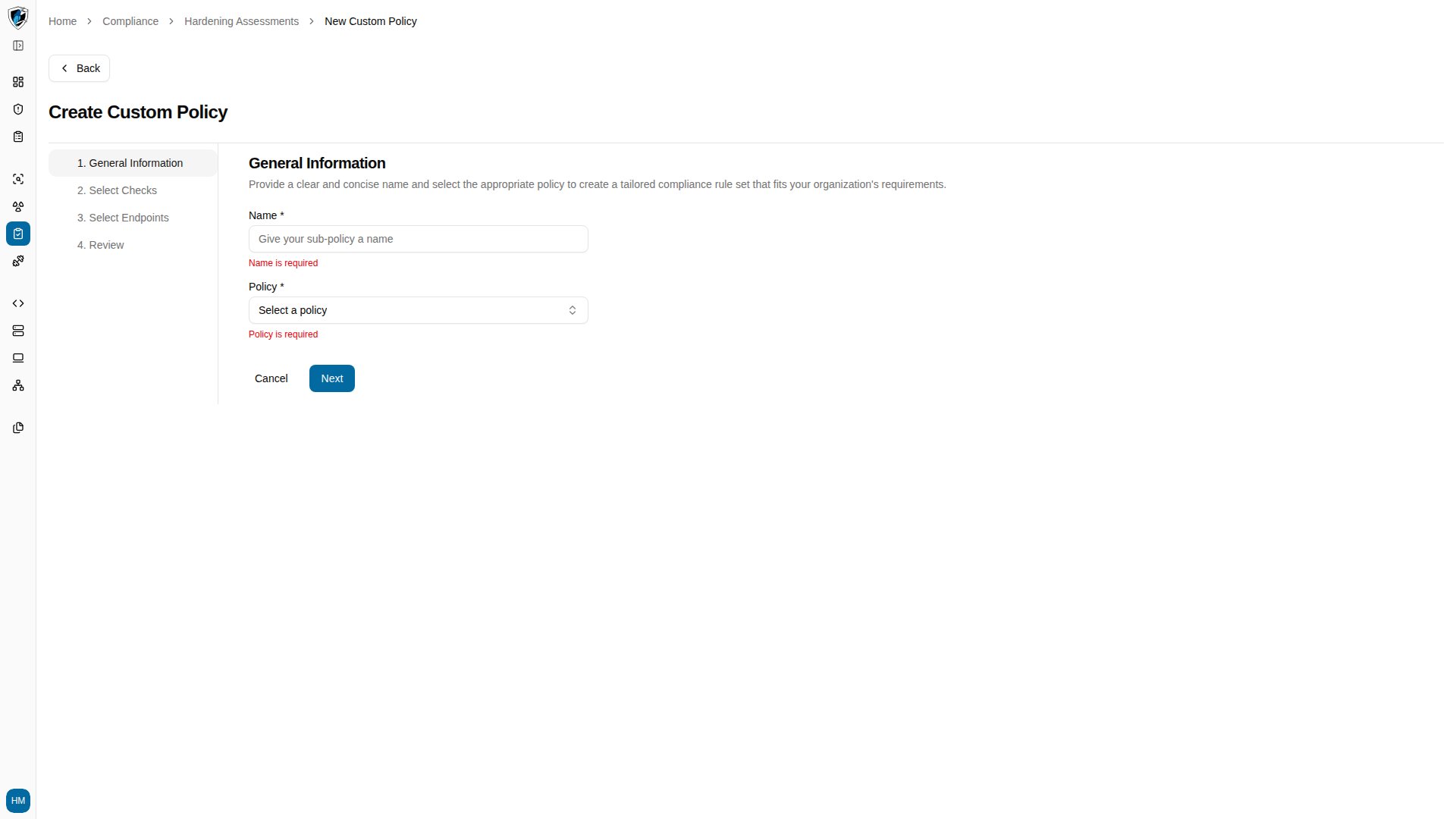
On Step 1, enter a policy Name and select a base benchmark from the Policy combobox, then click Next.
-
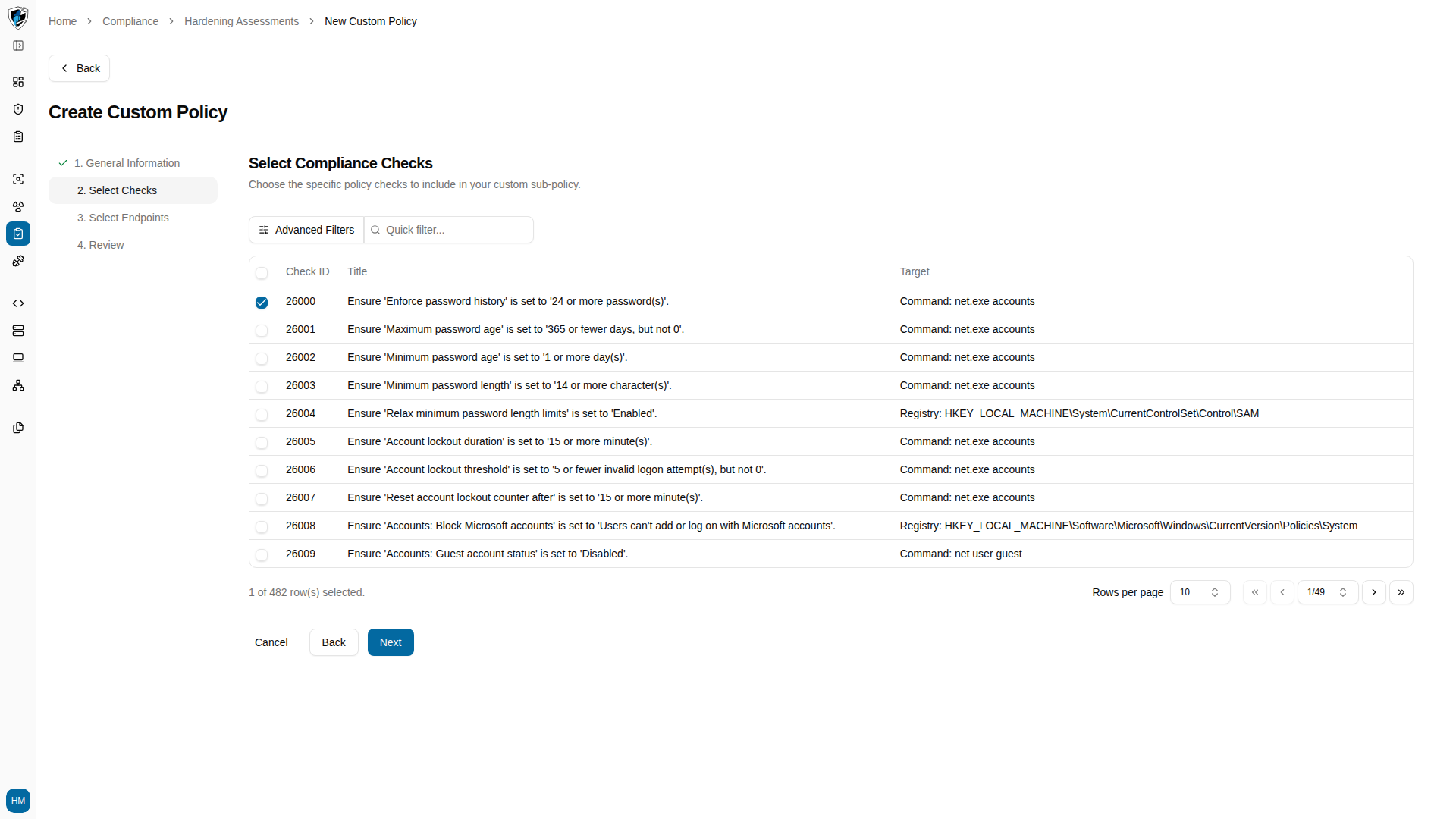
On Step 2, select the compliance checks to include. Click any check title to preview its full detail before deciding.
-
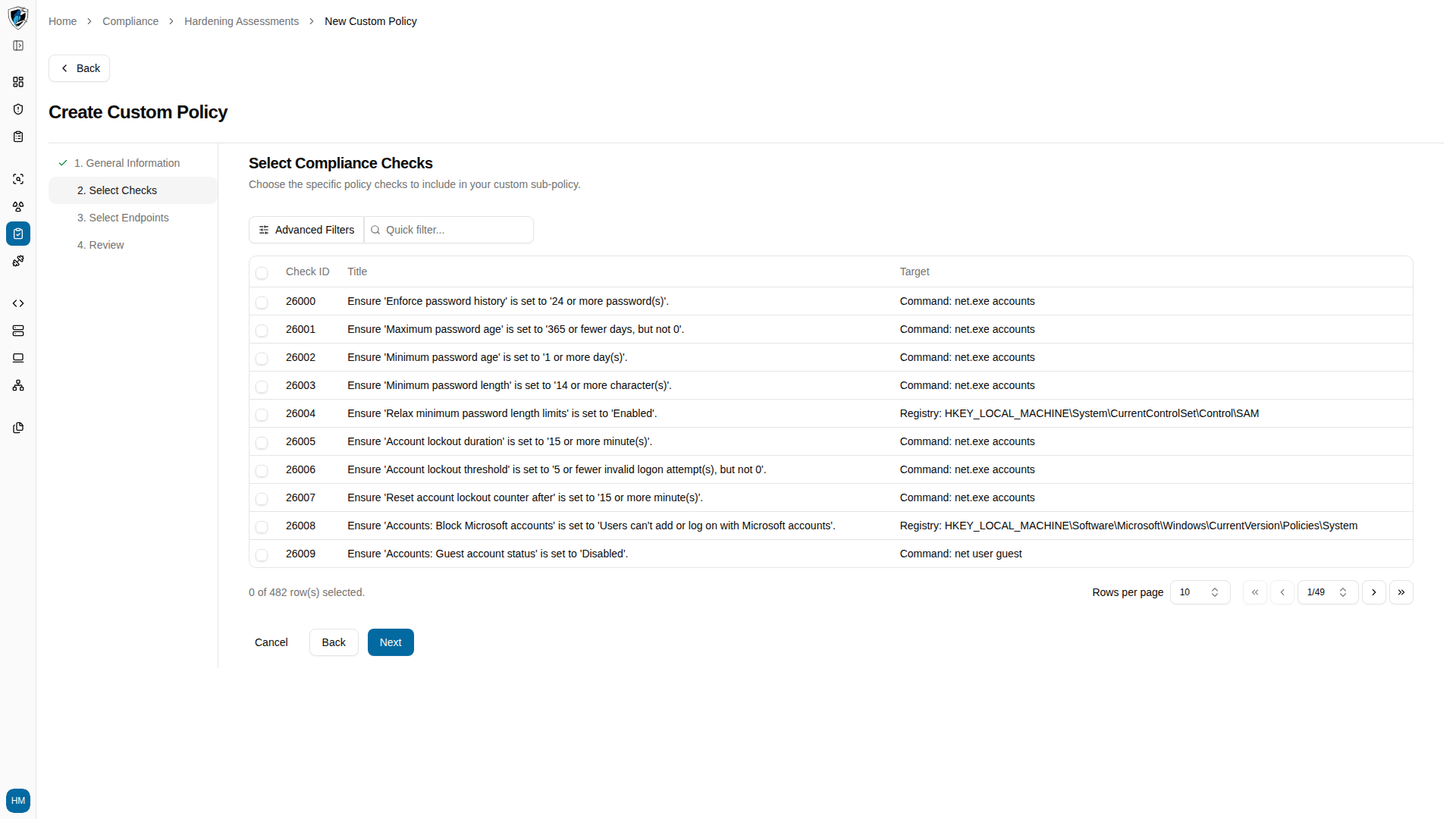
Click Next. If nothing is selected, a toast blocks you.
-
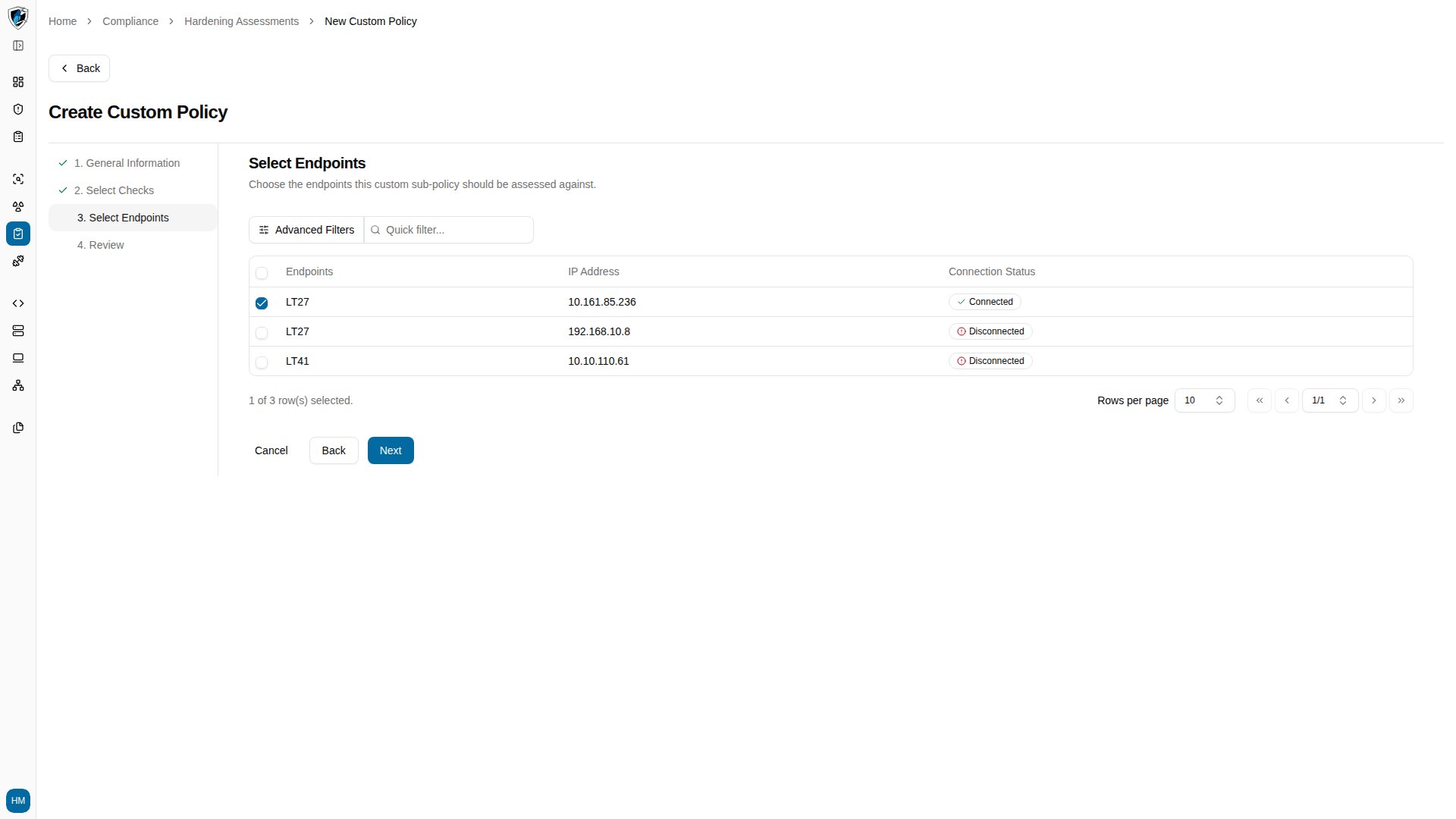
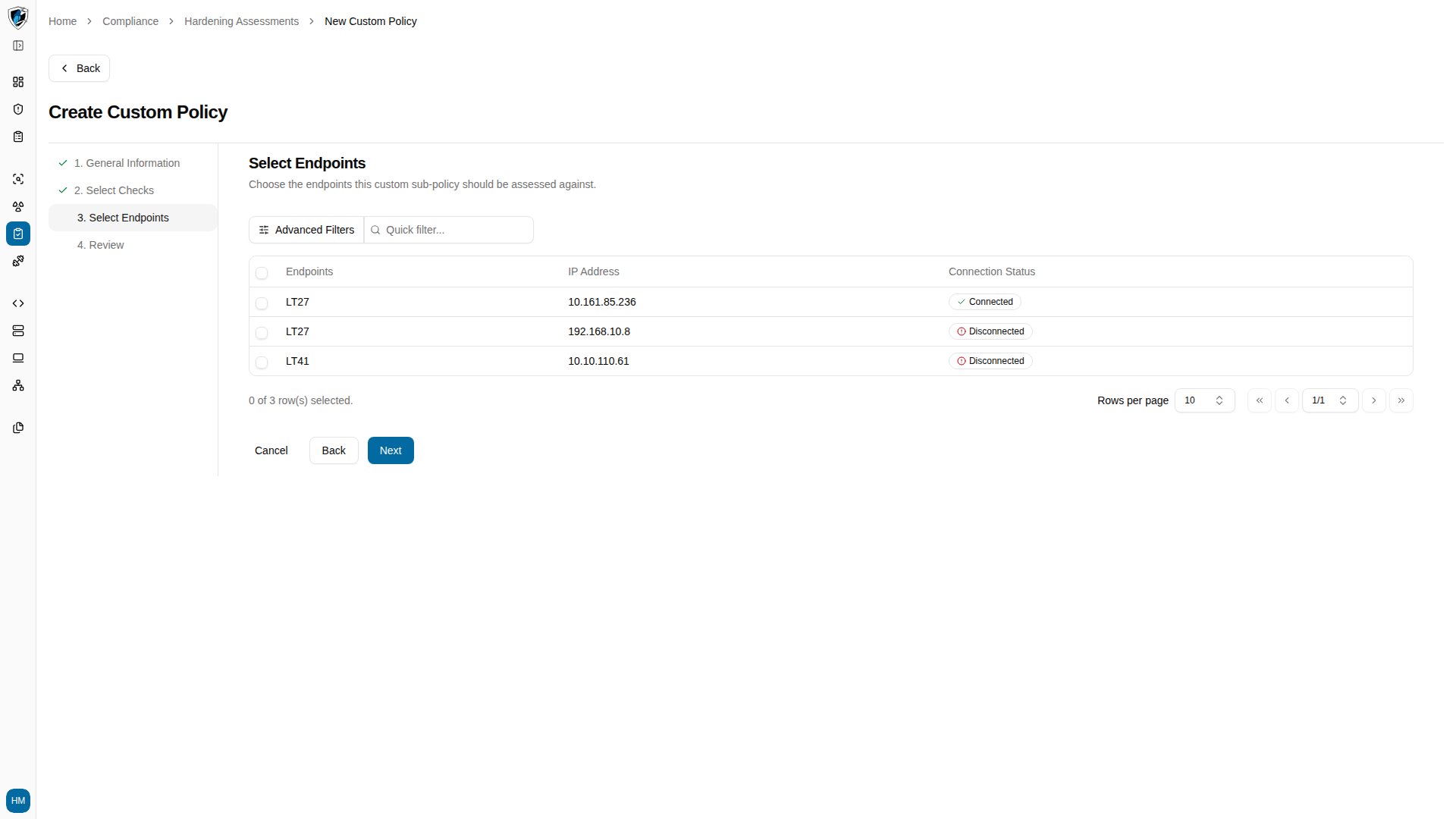
On Step 3, select the target endpoints. The table shows Name, IP, and a connection status badge for each.
-
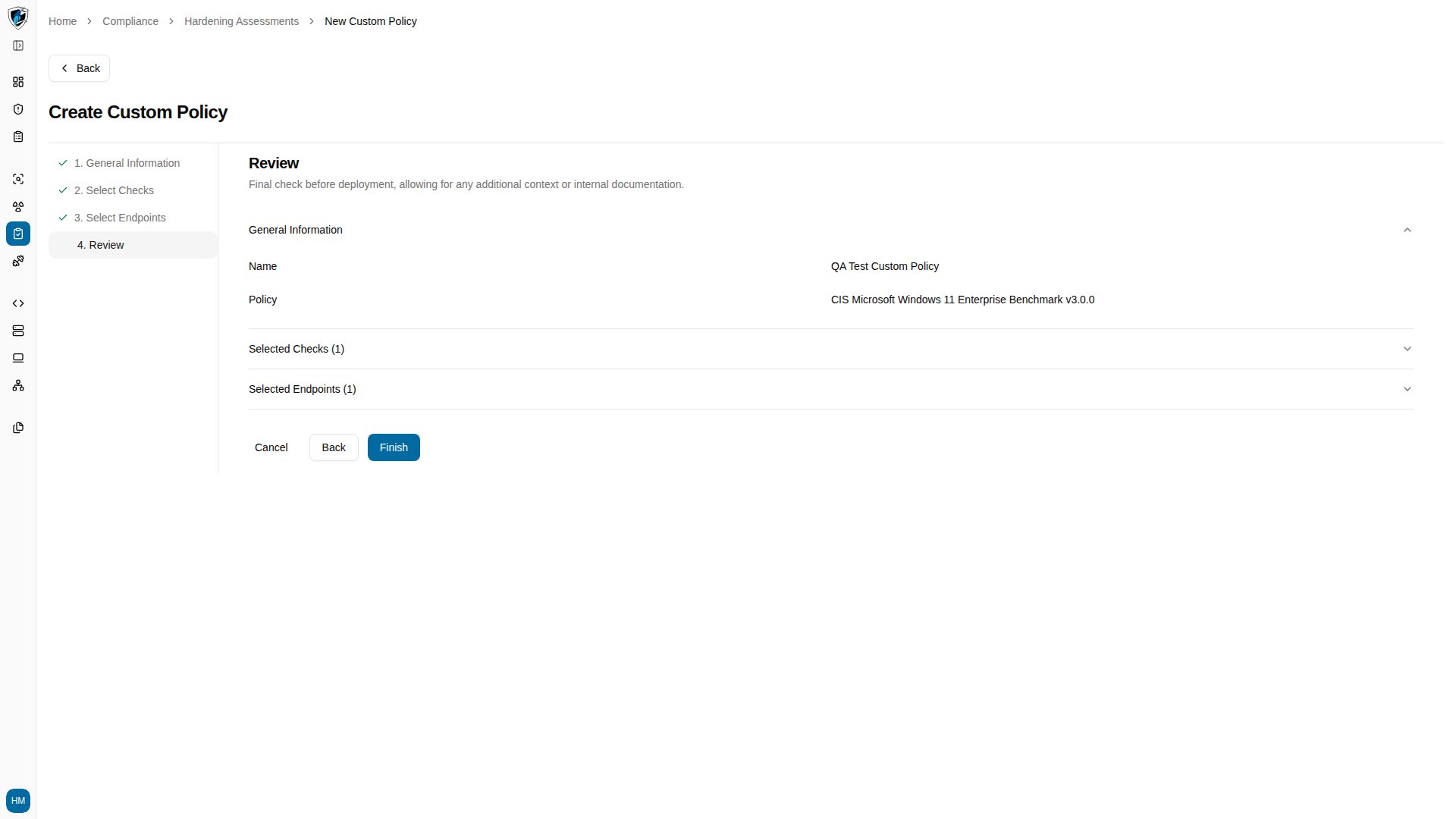
On Step 4, expand the Selected Checks (N) and Selected Endpoints (N) accordions to confirm everything, then click Finish.
Validation and behavior
Two behaviors are worth knowing before you start:
Changing the base policy resets your work. Selecting a different base policy on step 1 clears every check and endpoint selection you made in later steps. Settle on the base benchmark first.
Endpoints must have been scanned. If no base policies exist, or no endpoint has completed an SCA scan, the dropdown reads
No policies found. Endpoints must complete a scan first.