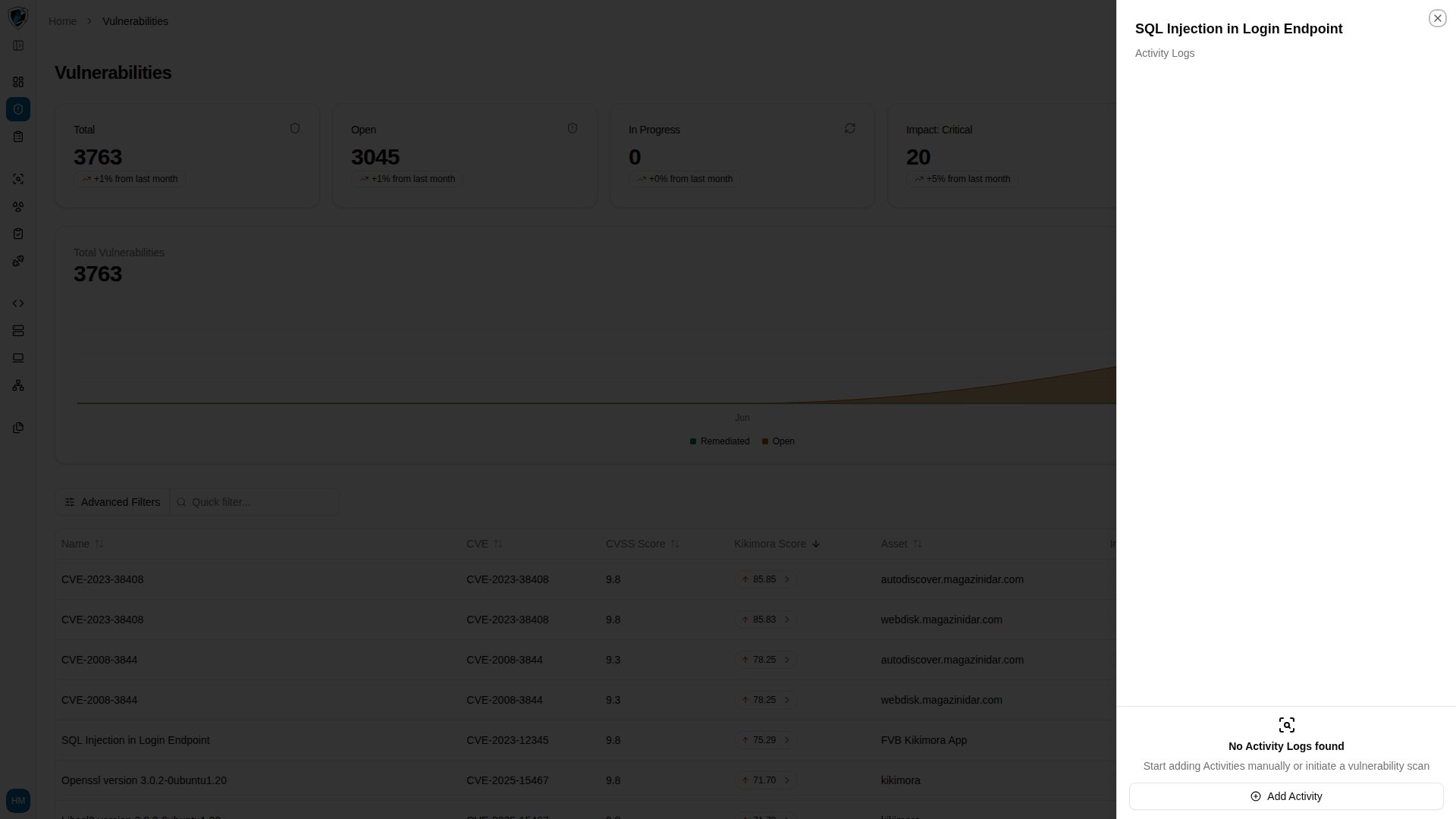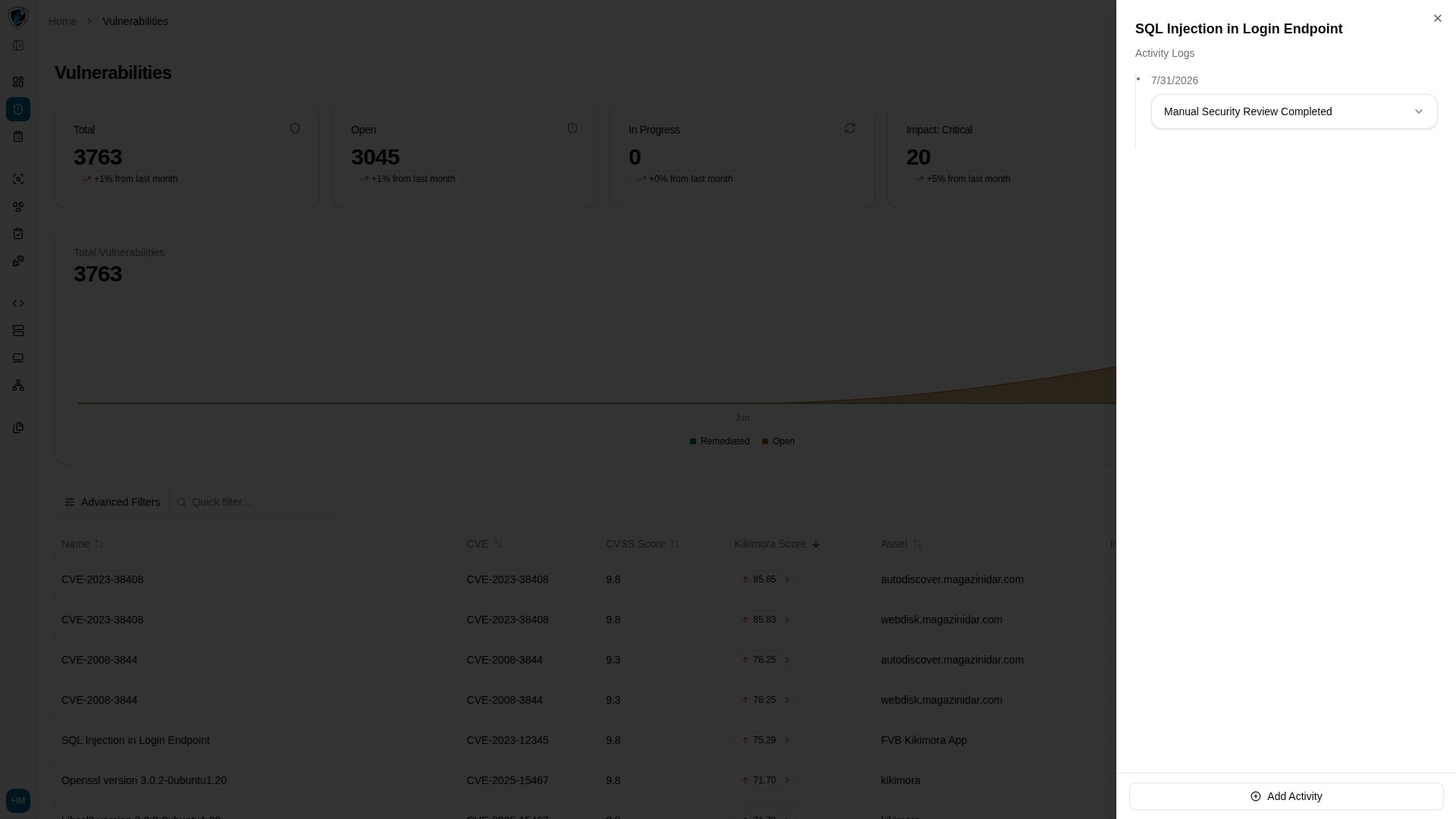

Activity Logs track the full history of a vulnerability — changes, status updates, and manual entries — as an audit trail. The same sheet appears in the Web Applications inner vulnerabilities table and in Manual Tests. Activities are grouped chronologically by date. Longer histories collapse behind a ”+ N more activities” control and continue loading as you scroll.

View activity logs

  1. Find the vulnerability row in the table.
  2. Click the row action menu (...) at the right end of the row.
  3. Select Activity Logs. Activity Logs sheet showing a vulnerability's history grouped chronologically by date

Add an activity

  1. Click Add Activity at the bottom of the Activity Logs sheet. Add Activity form with name and description fields inside the activity logs sheet
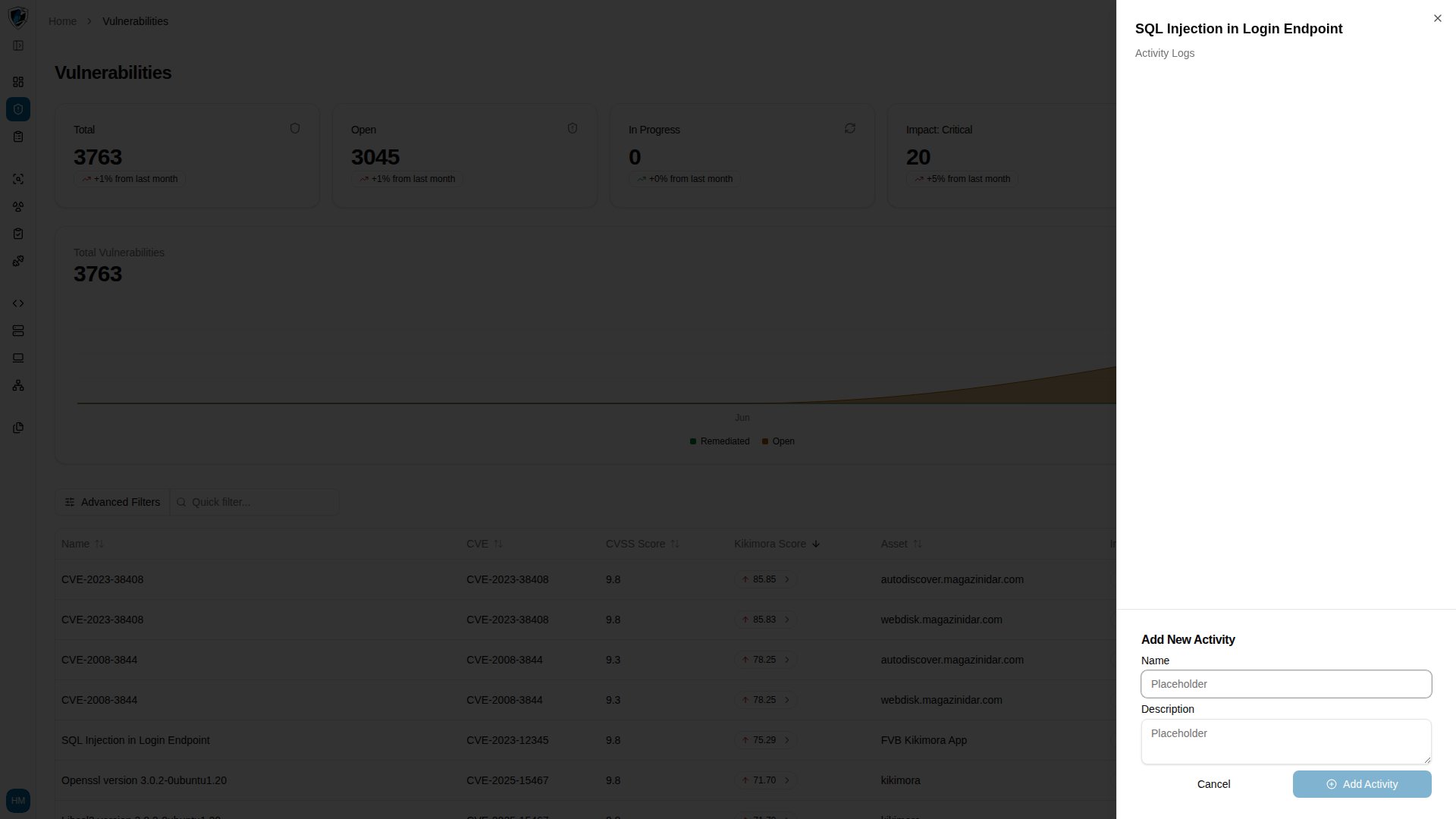
  2. Enter a Name, such as Manual Security Review Completed, and optionally a Description. The submit button stays disabled until Name is filled in.
  3. Click Add Activity. A success toast reading Activity added. confirms the entry. Activity logs timeline with the newly added entry and its confirmation toast