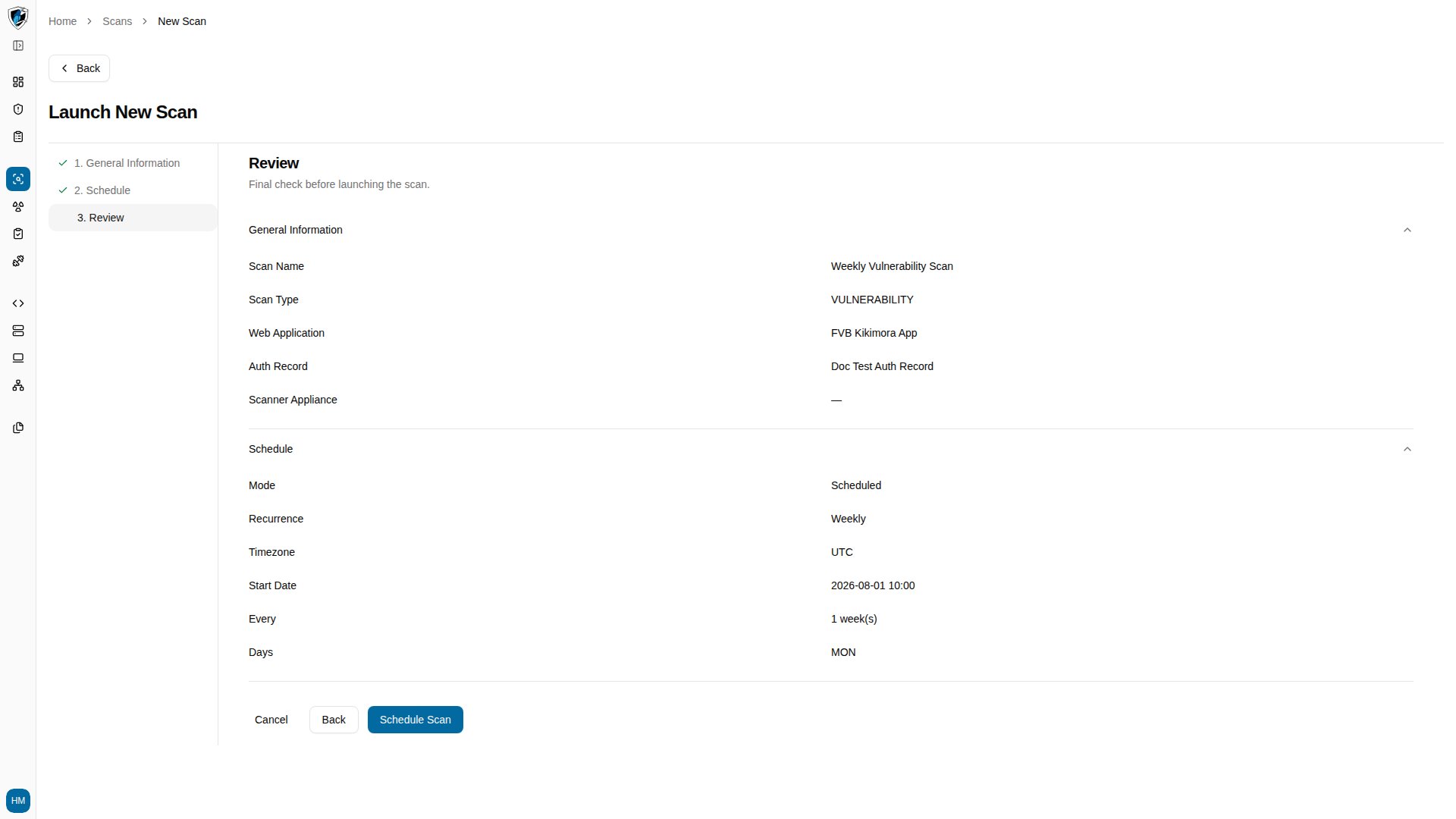

Step 1: General information
- Click New Scan on the Scans list page.
- Enter a Scan Name, such as
Weekly Vulnerability Scan. - Select
Vulnerabilityfrom the Scan Type dropdown. - Select the target under Web Application, such as
FVB Kikimora App. - Select an Auth Record to scan as an authenticated user, such as
Doc Test Auth Record. - Click Next.
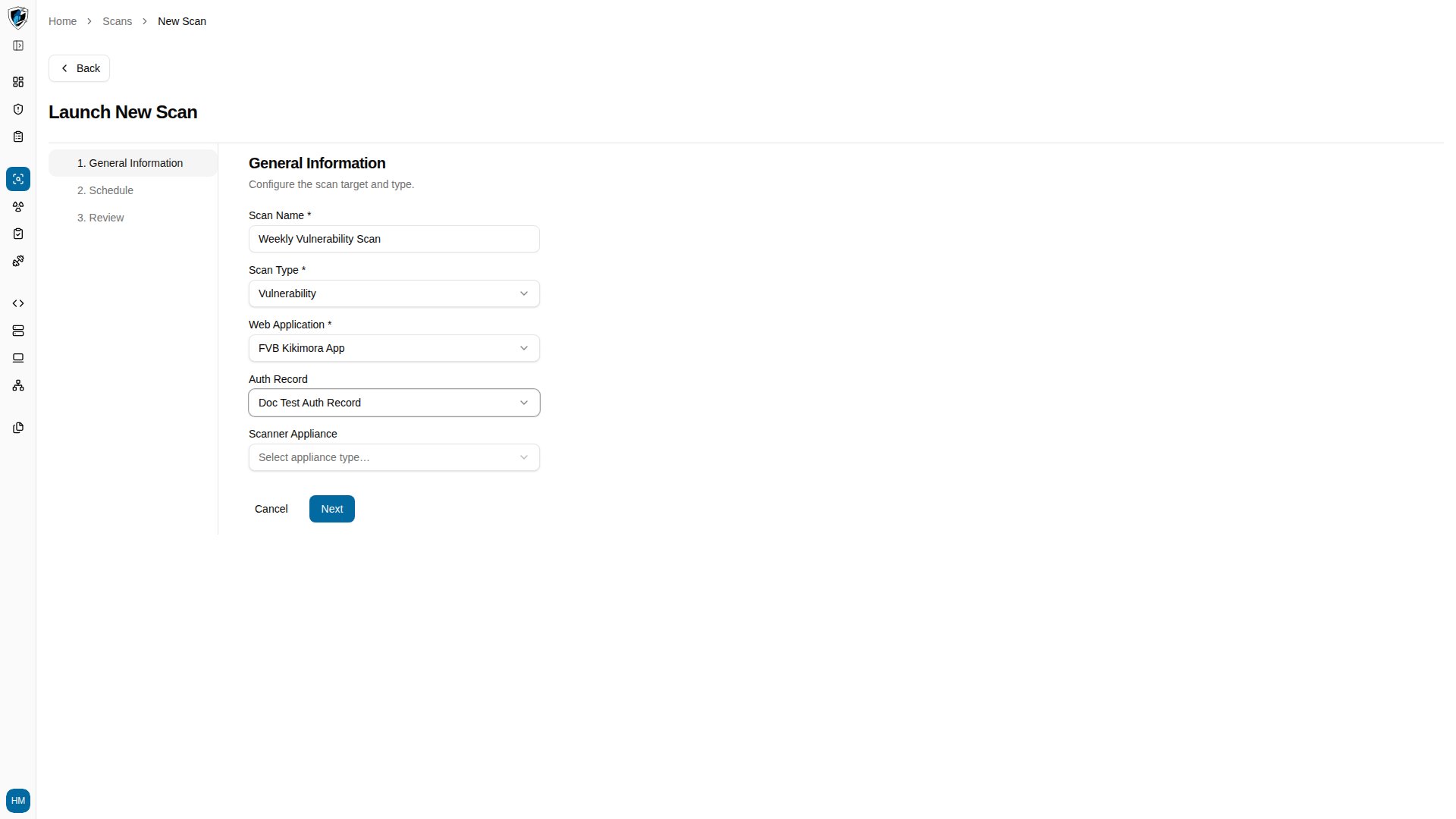
Step 2: Schedule
Step 2 controls when the scan runs and how often it repeats. Scan timing- Run Now triggers a single immediate execution.
- Schedule defers the scan and opens the recurrence options.
- Once — a single execution at a future date and time.
- Daily — repeats every day at the configured start time.
- Weekly — repeats on selected days of the week, such as
MON. - Monthly — repeats on specified days of the month.
2026-08-01 10:00.
To schedule a weekly scan:
- Select Schedule.
- Set Recurrence to
Weekly. - Select the day to run on, such as
MON. - Set the Start Date.
- Click Next.
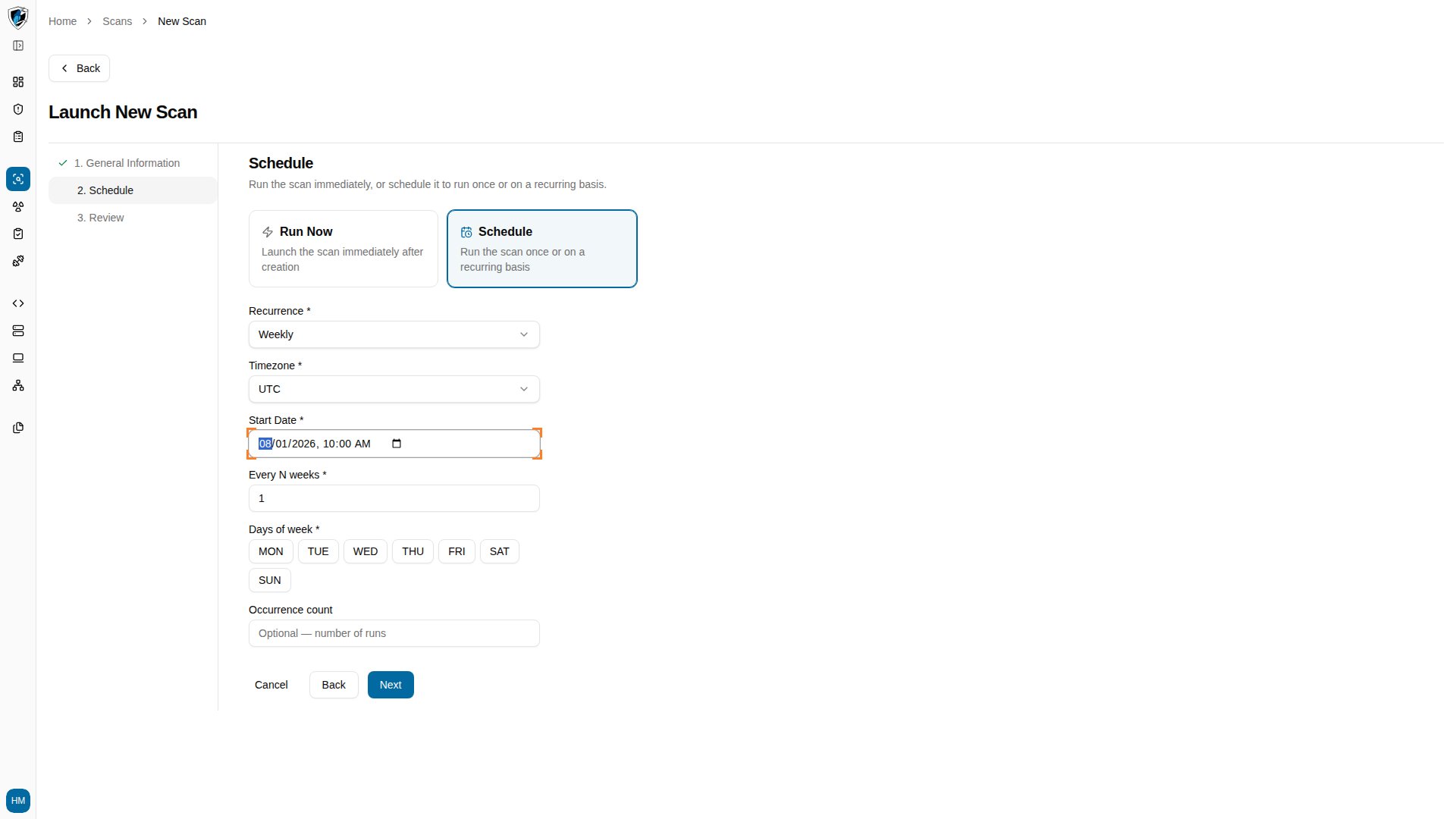
Step 3: Review
Step 3 is the final check before launching. It summarizes everything you configured:- General Information — Scan Name, Scan Type, Web Application, Auth Record, and Scanner Appliance.
- Schedule — Mode, Recurrence, Timezone, Start Date, Every, and Days.