> ## Documentation Index
> Fetch the complete documentation index at: https://docs.kikimora.io/llms.txt
> Use this file to discover all available pages before exploring further.
# Editing a scheduled scan
> Change the configuration or schedule of an existing scheduled scan, and see which fields are locked once the scan exists.
You can edit a scheduled scan before it executes to adjust its configuration or timing.
## What you can change
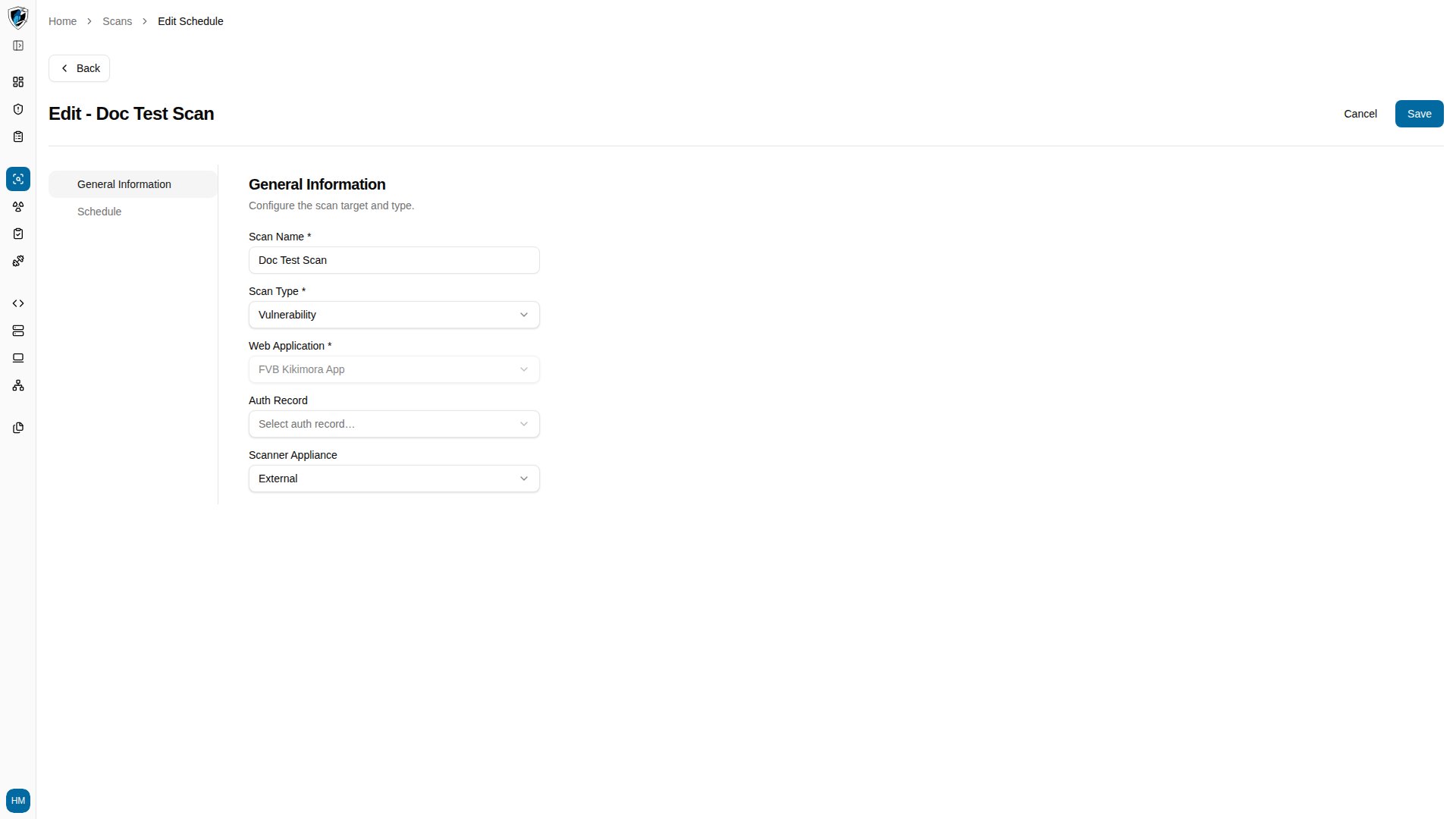
The wizard pre-fills Scan Name, Scan Type, Web Application, Auth Record, and the schedule options from the existing record.
* **Editable** — Scan Name, Scan Type, Auth Record, Recurrence, and Start Date.
* **Locked** — **Web Application** is disabled in edit mode. To scan a different application, create a new scan instead.
## Edit a scan
1. Click the action menu (`...`) on the scheduled scan row and select **Edit** to open the wizard with its general settings pre-filled.
 2. Open the **Schedule** step and adjust the recurrence or start date.
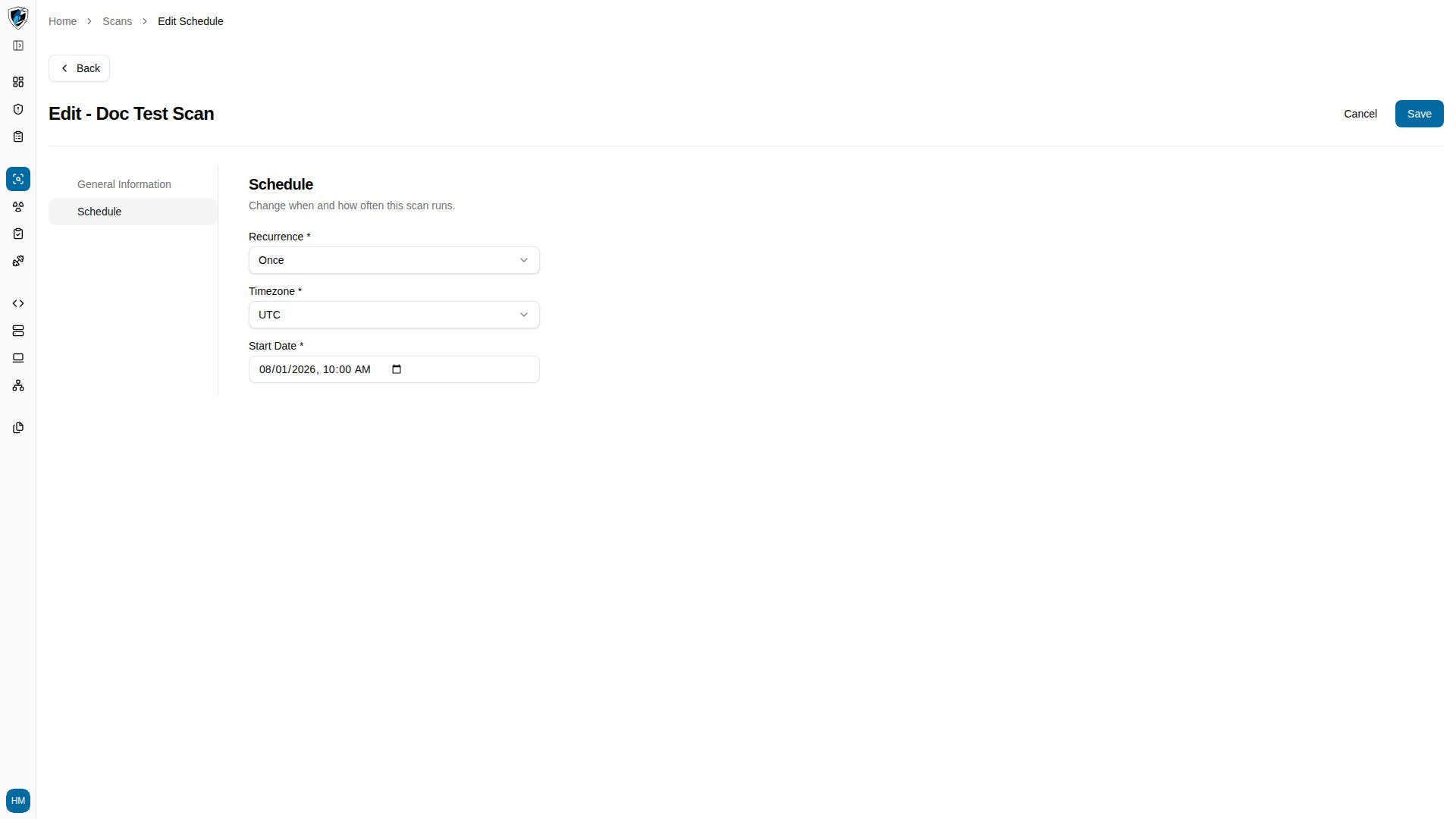 3. Click **Save**.