> ## Documentation Index
> Fetch the complete documentation index at: https://docs.kikimora.io/llms.txt
> Use this file to discover all available pages before exploring further.
# Browsing assets
> View, filter, sort, and customize the infrastructure inventory table, and inspect an individual asset in the preview drawer.
The Infrastructure table is a unified inventory of every discovered asset. This page covers searching it, shaping the view, and inspecting a single asset.
## Columns
| Column | Description |
| :-------------------- | :------------------------------------------------------------------------- |
| **Name** | Primary display name or identifier of the asset. |
| **Infrastructure** | Cloud provider or deployment environment, such as Cloud / Azure. |
| **IP** | Primary IP address associated with the asset. |
| **Hostname** | Fully qualified domain name or hostname. |
| **Environment** | Operational environment, such as Production or Staging. |
| **Risk Owner** | Team member or role accountable for the asset's security risk. |
| **Remediation Owner** | Engineer or administrator responsible for remediating its vulnerabilities. |
| **Criticality** | Business criticality — Low, Medium, High, or Critical. |
## Filtering and sorting
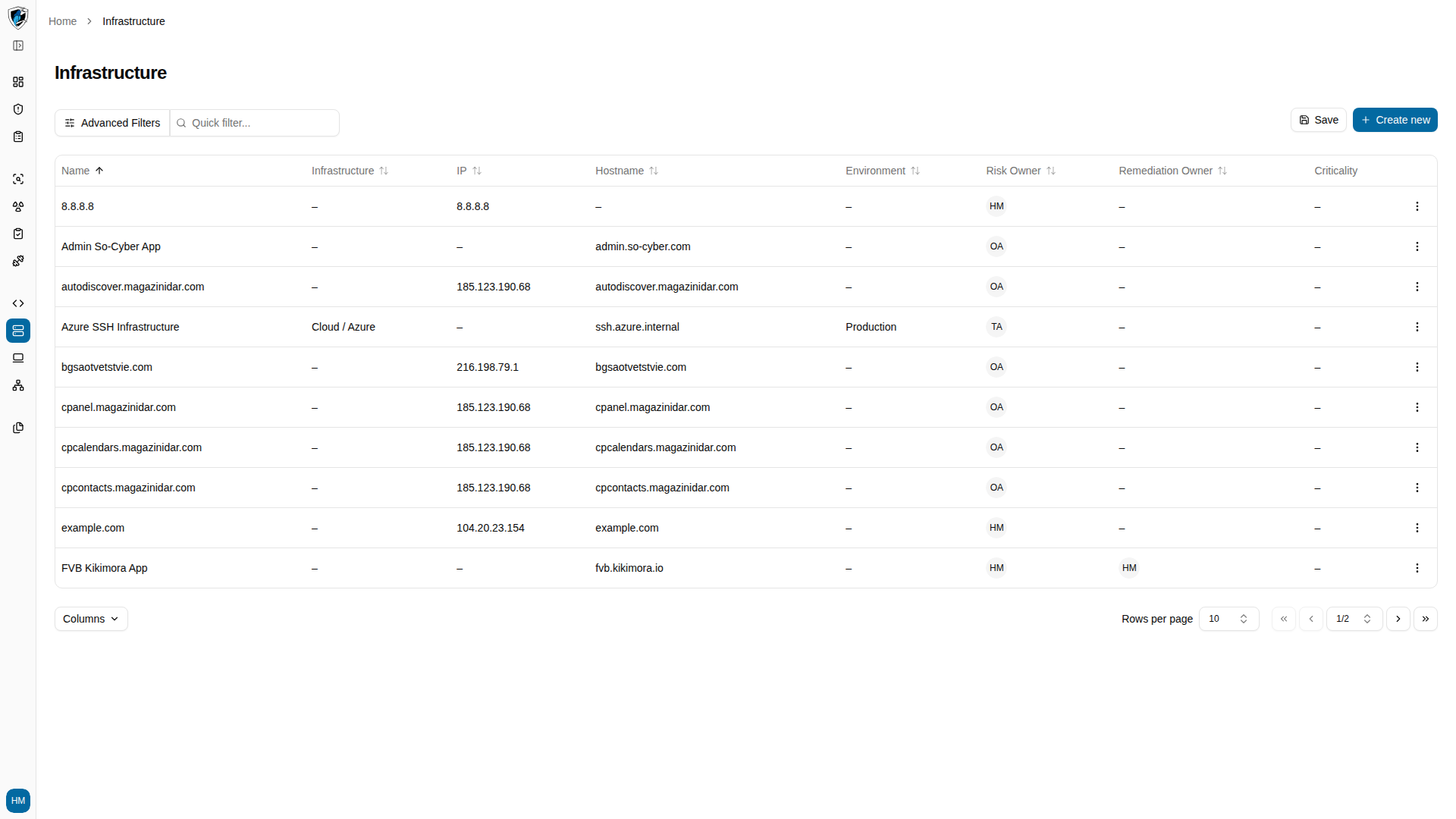
* **Advanced Filters** — the button above the table opens multi-criteria filtering by environment, provider, ownership, or criticality.
* **Sorting** — click any column header to sort alphabetically, numerically, or by criticality level.
## Browse the inventory
1. Open **Infrastructure** from the left sidebar.
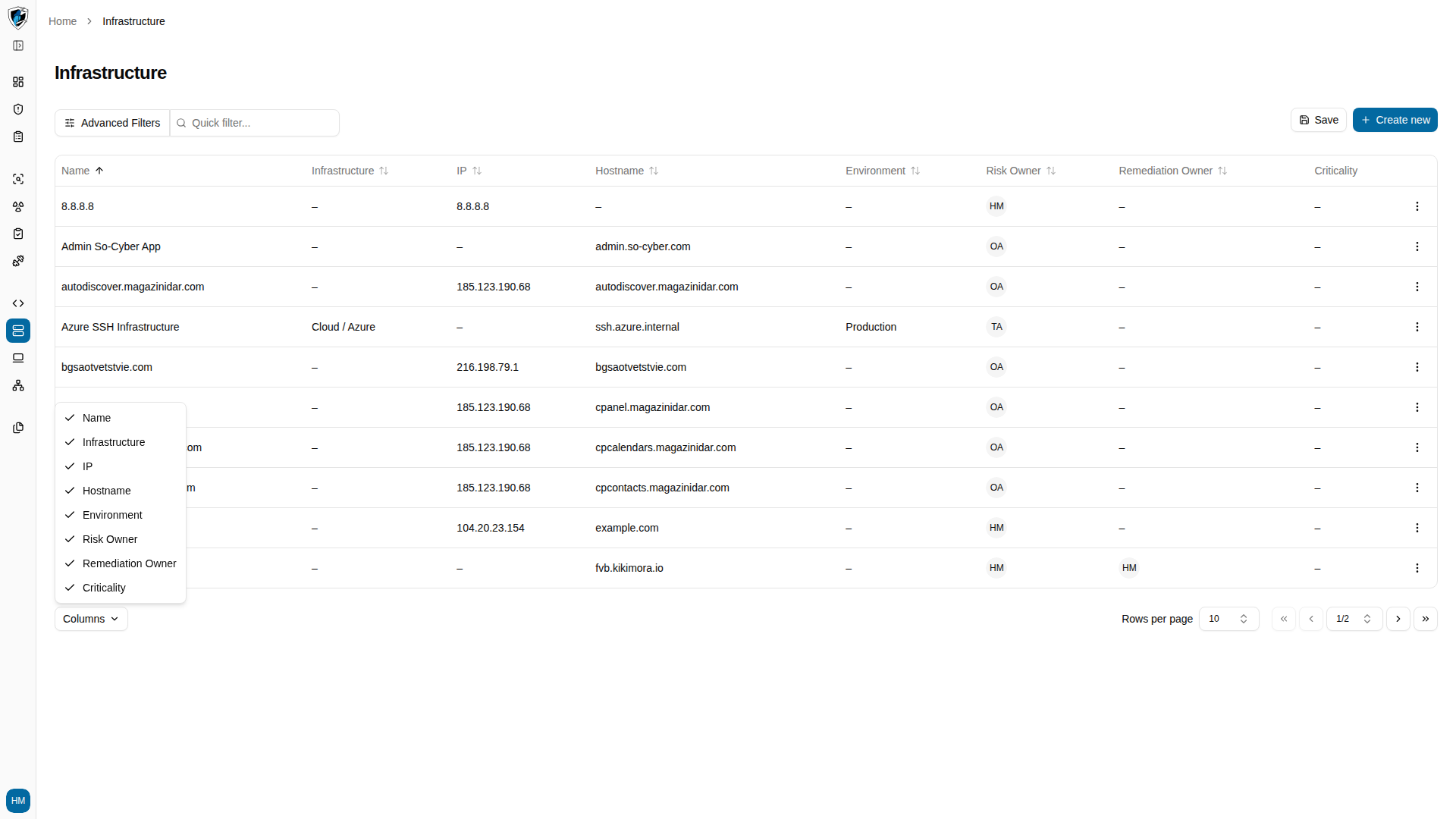
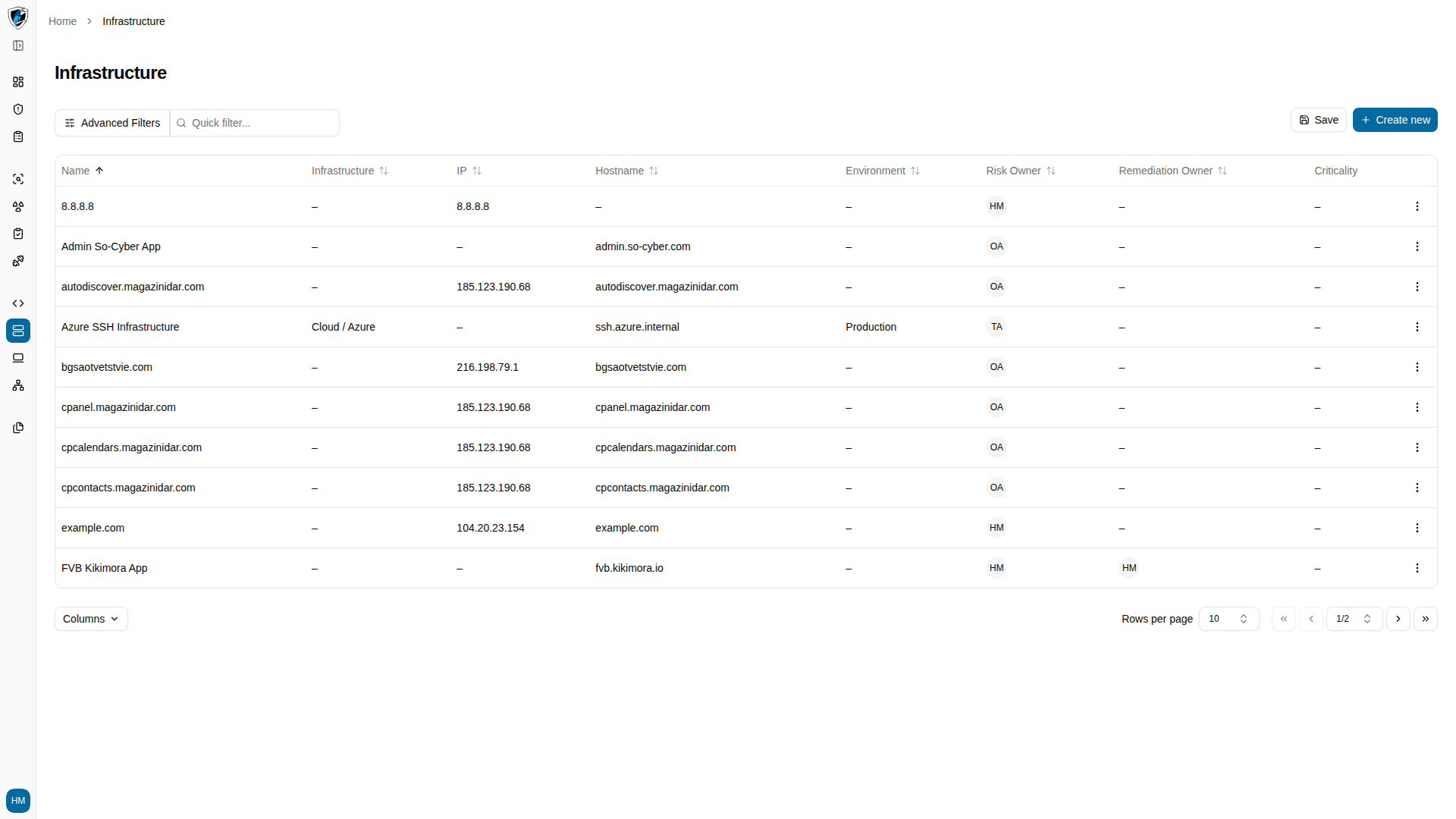 2. Click **Columns** at the bottom left to choose which columns are visible.
 3. Click **Advanced Filters** above the table to narrow the inventory.
 ## Inspect one asset
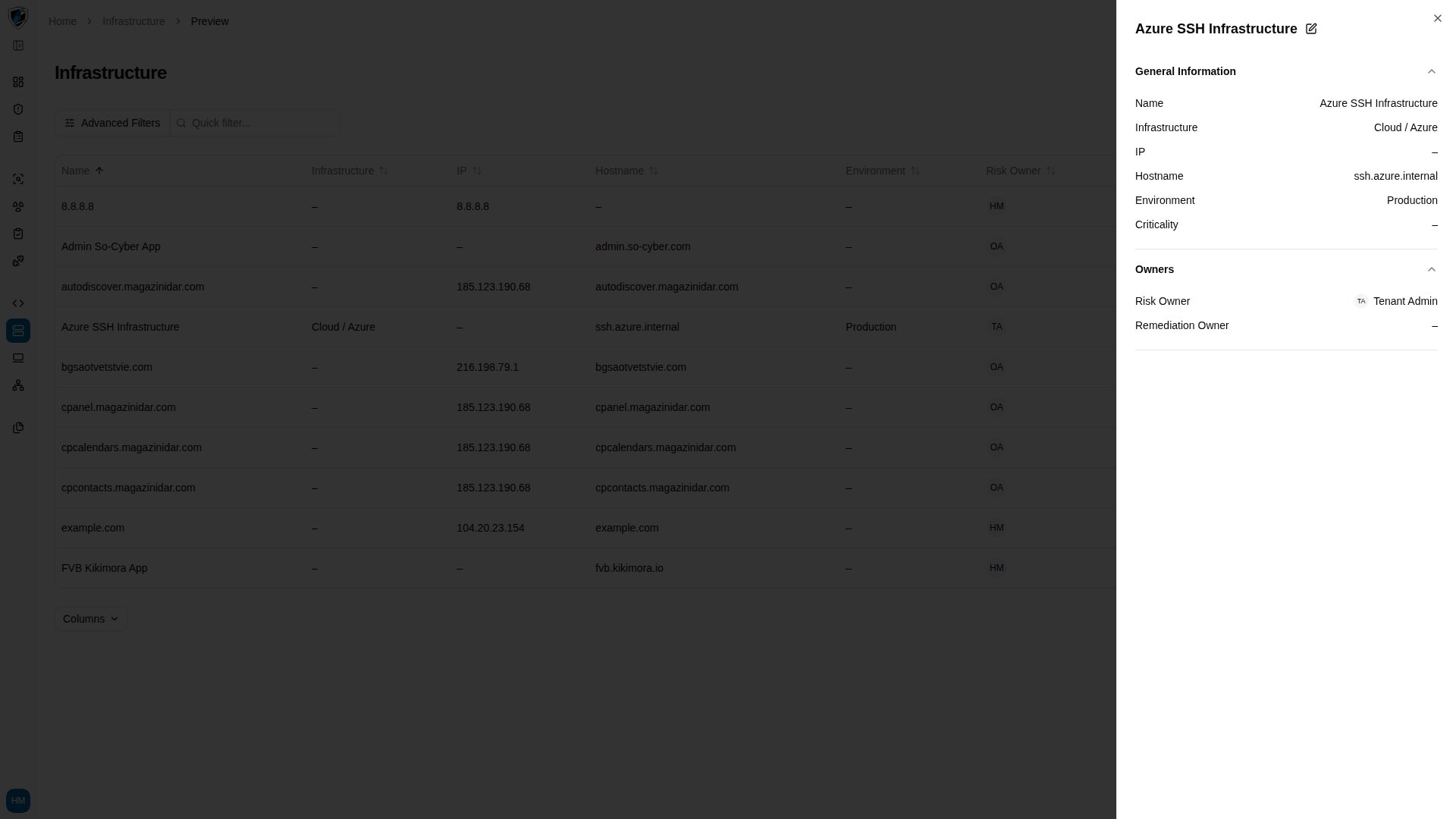
Clicking an asset's name opens a preview drawer on the right, organized into collapsible sections.
1. Click an asset name to open the drawer on **General Information**, which holds Name, Infrastructure provider, IP, Hostname, Environment, and Criticality.
## Inspect one asset
Clicking an asset's name opens a preview drawer on the right, organized into collapsible sections.
1. Click an asset name to open the drawer on **General Information**, which holds Name, Infrastructure provider, IP, Hostname, Environment, and Criticality.
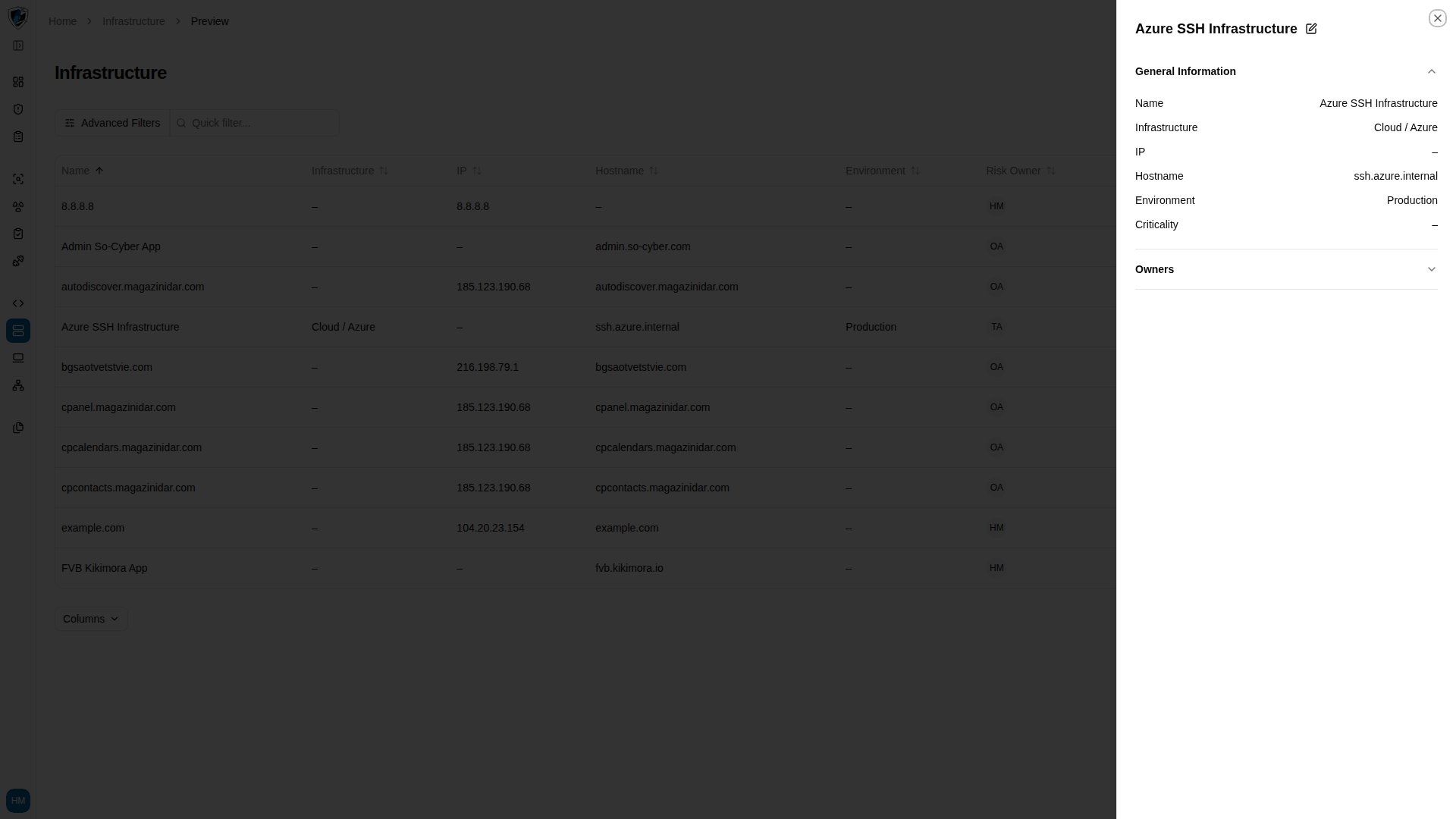 2. Click the **Owners** header to expand it and see the assigned risk and remediation owners.
 If a property in the drawer is still loading, a spinner appears in place of the value until it resolves.