> ## Documentation Index
> Fetch the complete documentation index at: https://docs.kikimora.io/llms.txt
> Use this file to discover all available pages before exploring further.
# Reviewing results
> Read the integrity monitoring endpoint table, then drill into a host's monitored file changes and Windows Registry changes.
Integrity Monitoring shows you host integrity activity across the fleet, then lets you drill into a single endpoint's file and registry changes.
## The endpoint table
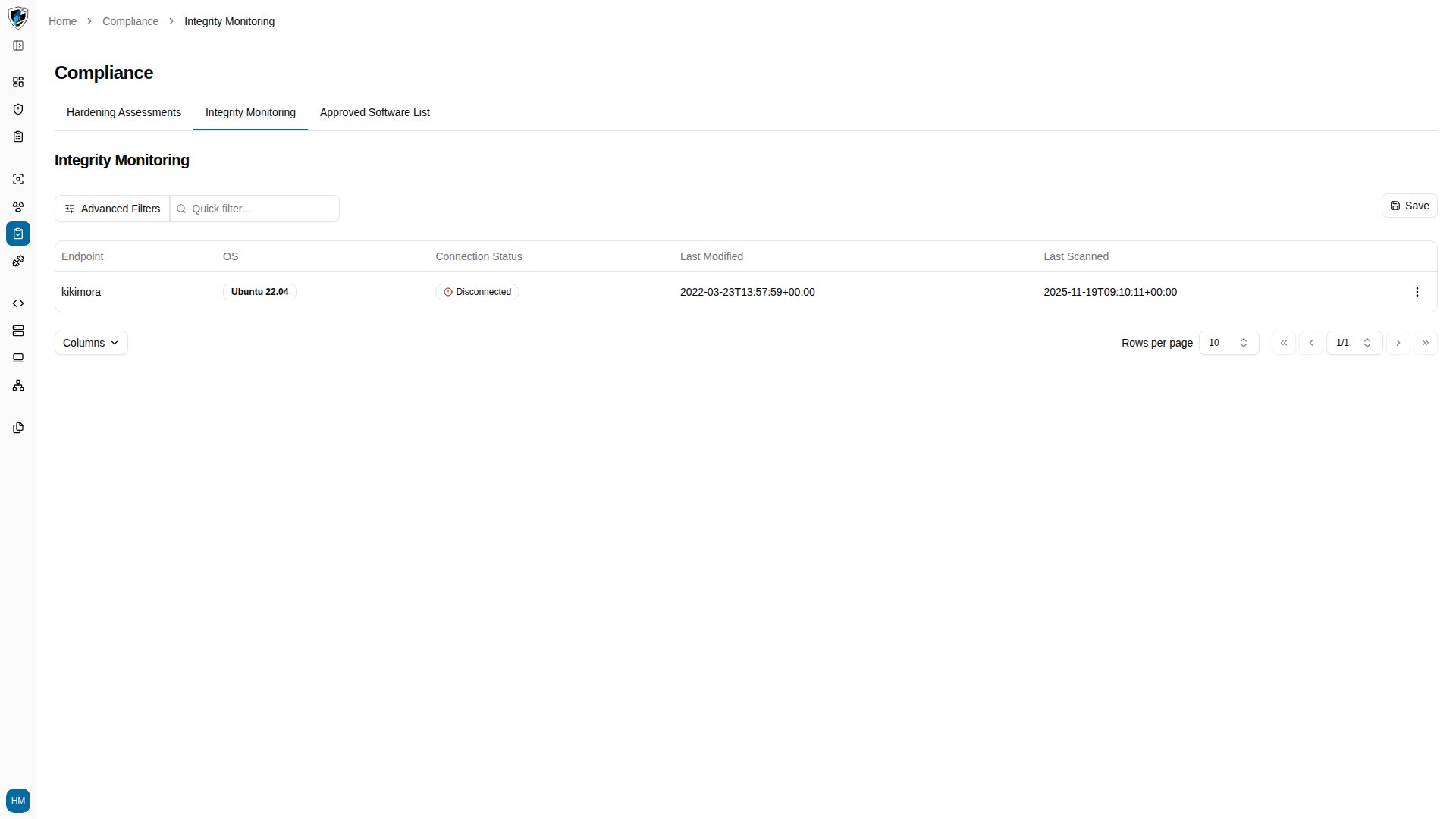
The main page at `/compliance/file-integrity` lists every monitored endpoint.
| Column | Description |
| :-------------------- | :---------------------------------------------------------------- |
| **Endpoint** | Hostname or identifier of the target system. |
| **OS** | Operating system running on the endpoint, such as `Ubuntu 22.04`. |
| **Connection Status** | Whether the agent is currently connected. |
| **Last Modified** | When the most recent file or registry change was recorded. |
| **Last Scanned** | When the agent last completed an integrity scan. |
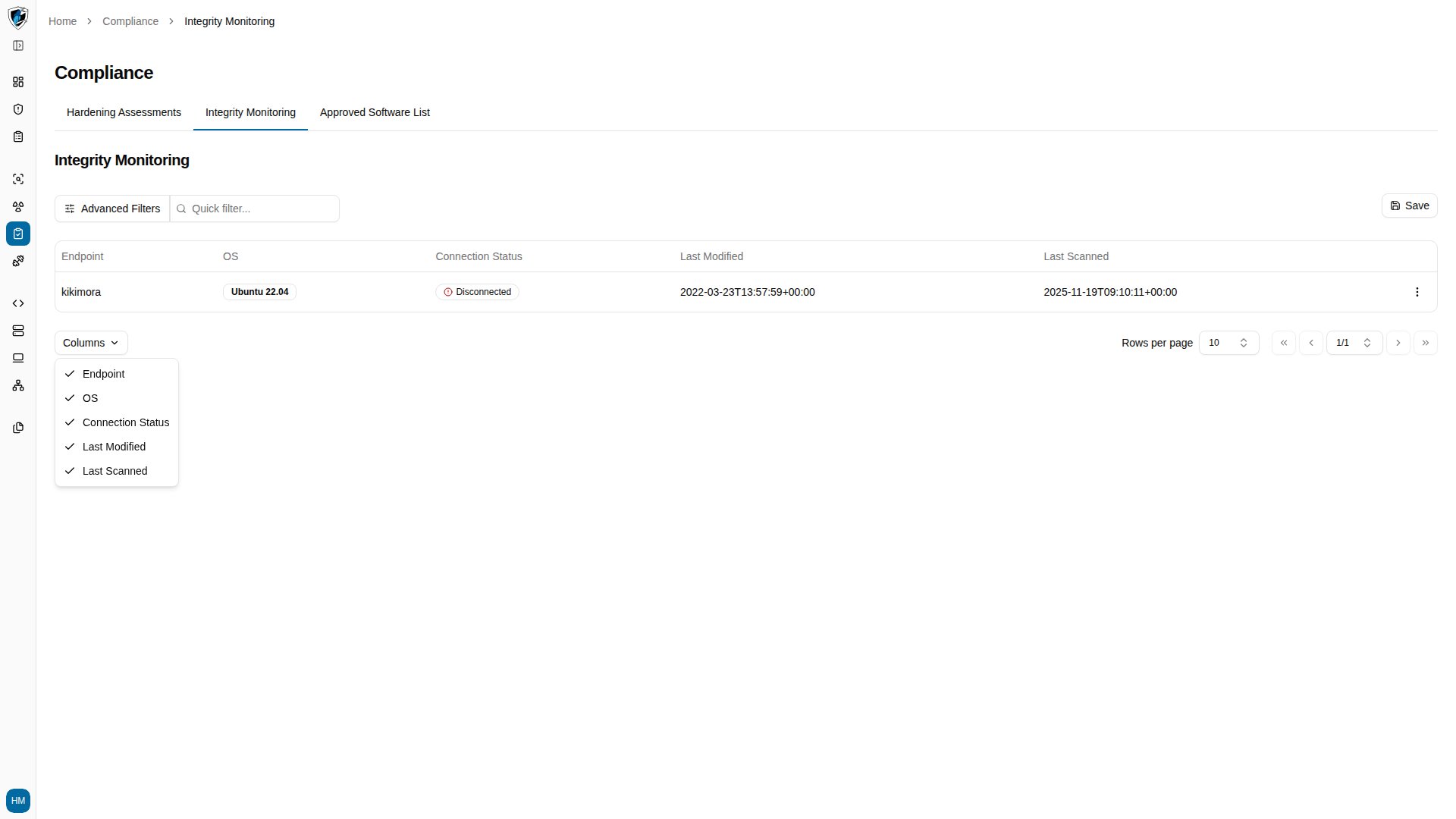
Controls: a **Quick filter...** search box above the table, an **Advanced Filters** button for multi-attribute filtering, a **Columns** button at the bottom left to toggle any of the five columns, and pagination at the bottom right with a default page size of 10.
## Review integrity results
1. Go to **Compliance → Integrity Monitoring** (`/compliance/file-integrity`). The table lists every endpoint reporting integrity data.
 2. Click **Columns** at the bottom left to configure which columns are visible.
 3. Click an endpoint's name to open its detail page at `/compliance/file-integrity/`. It opens on the **Files** sub-tab, listing every monitored file change.
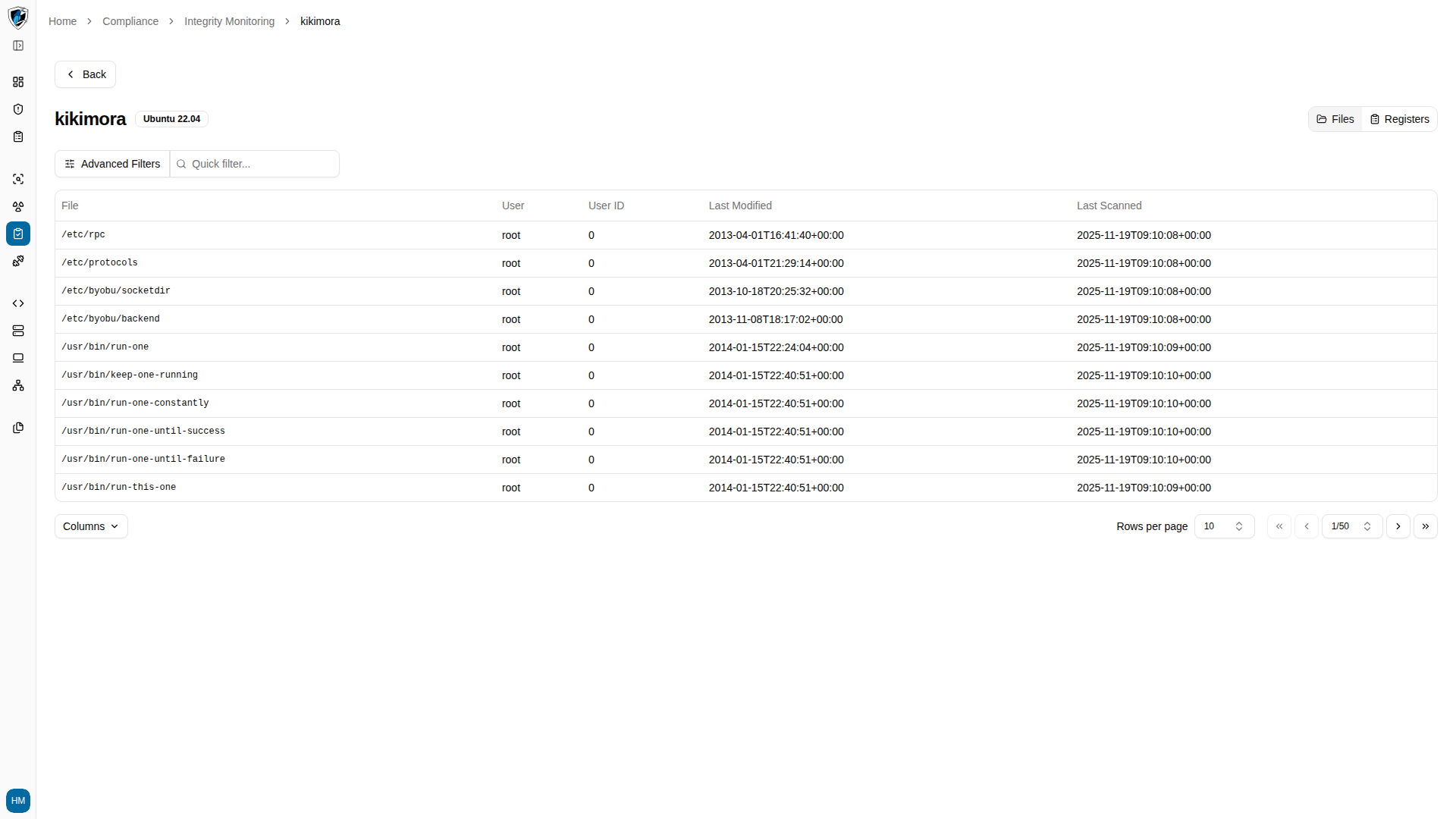 The Files table shows the full **File** path, the **User** associated with the change, their numeric **User ID**, and the **Last Modified** and **Last Scanned** timestamps.
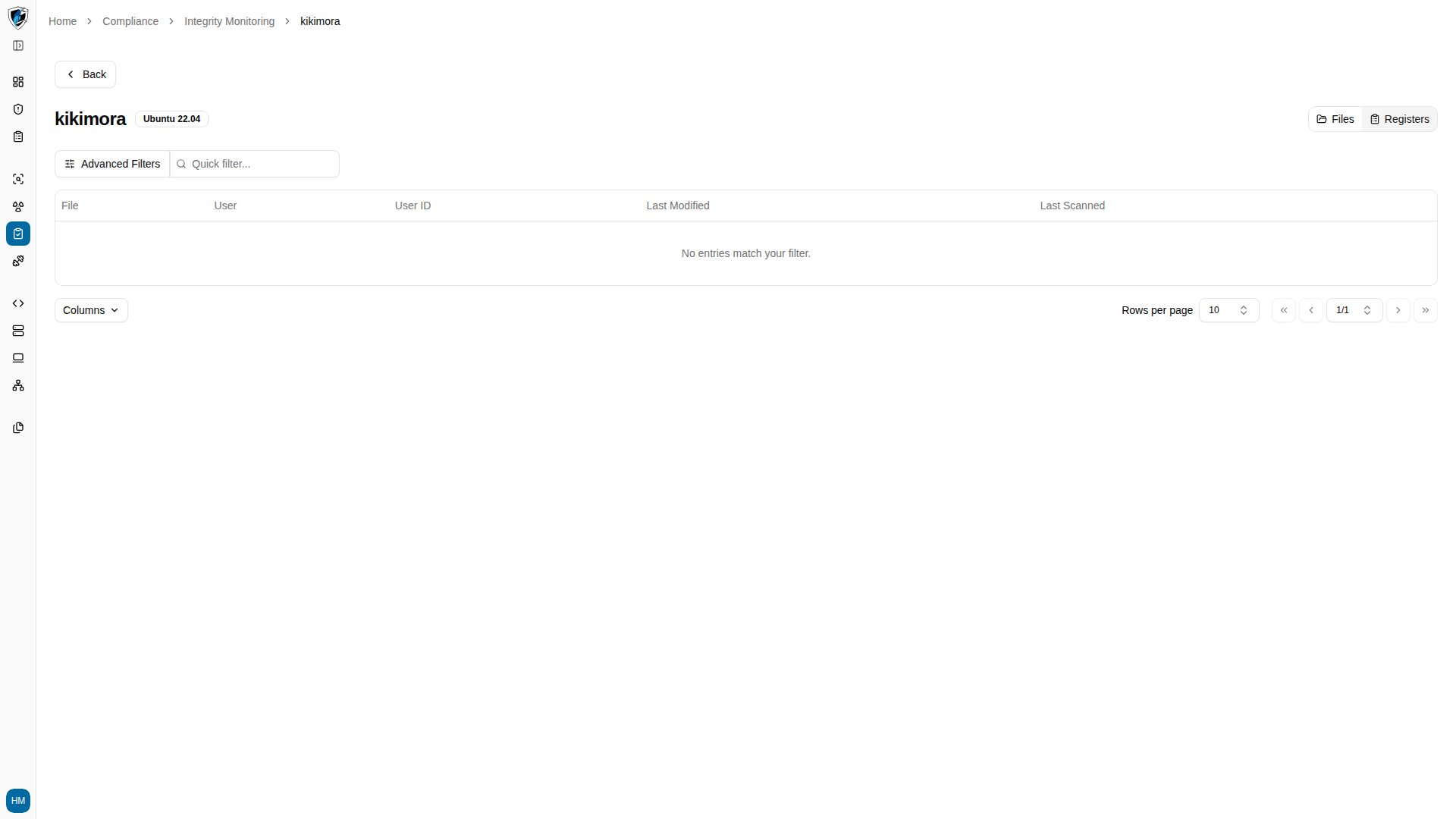
4. Click the **Registers** sub-tab for Windows Registry key and value changes. On non-Windows hosts such as Linux, this tab shows an empty state confirming no registry entries apply.
The Files table shows the full **File** path, the **User** associated with the change, their numeric **User ID**, and the **Last Modified** and **Last Scanned** timestamps.
4. Click the **Registers** sub-tab for Windows Registry key and value changes. On non-Windows hosts such as Linux, this tab shows an empty state confirming no registry entries apply.
 ## Interpreting an entry
Three things make an entry readable:
* **File or registry path** pinpoints exactly what is being tracked.
* **User and user ID** tell you who made the change, which is what separates a routine administrative update from something unexpected.
* **Timestamps** — comparing **Last Modified** against **Last Scanned** tells you how recently the change happened relative to the scan cycle, and therefore how fresh the finding is.
## Interpreting an entry
Three things make an entry readable:
* **File or registry path** pinpoints exactly what is being tracked.
* **User and user ID** tell you who made the change, which is what separates a routine administrative update from something unexpected.
* **Timestamps** — comparing **Last Modified** against **Last Scanned** tells you how recently the change happened relative to the scan cycle, and therefore how fresh the finding is.