> ## Documentation Index
> Fetch the complete documentation index at: https://docs.kikimora.io/llms.txt
> Use this file to discover all available pages before exploring further.
# Creating a custom policy
> Build your own SCA benchmark with the four-step wizard by picking checks from a base policy and assigning target endpoints.
A custom hardening policy lets you tailor SCA benchmark checks to a specific environment, keeping only the rules that matter and applying them to the endpoints you choose.
Creating one requires the **Wazuh SCA preset store permission**. Without it, the **Create Custom Policy** button is not visible.
## The four steps
1. **General Information** — name the policy and pick the base benchmark.
2. **Select Checks** — choose which compliance rules to include from that benchmark's catalogue.
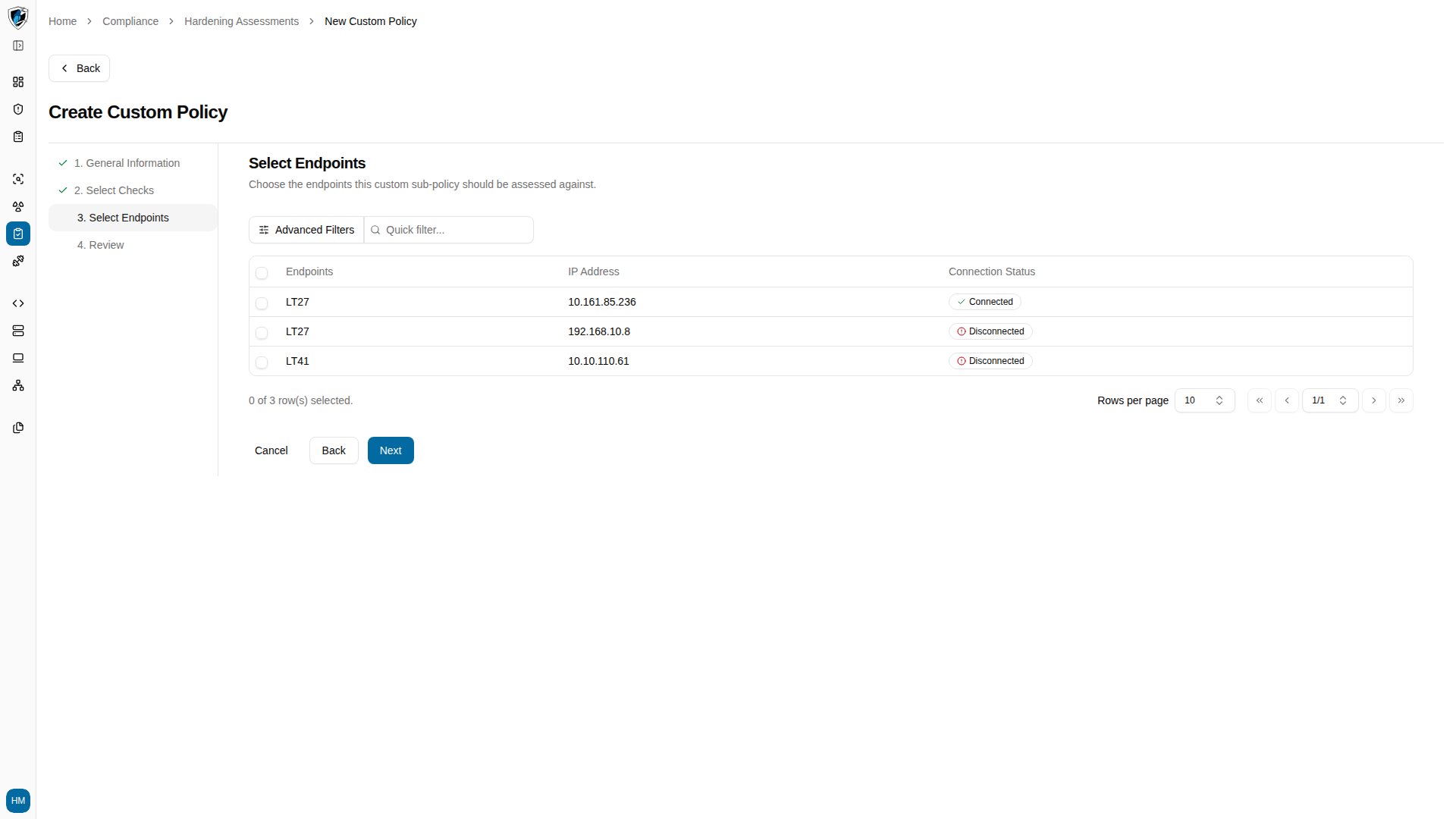
3. **Select Endpoints** — choose which endpoints to evaluate.
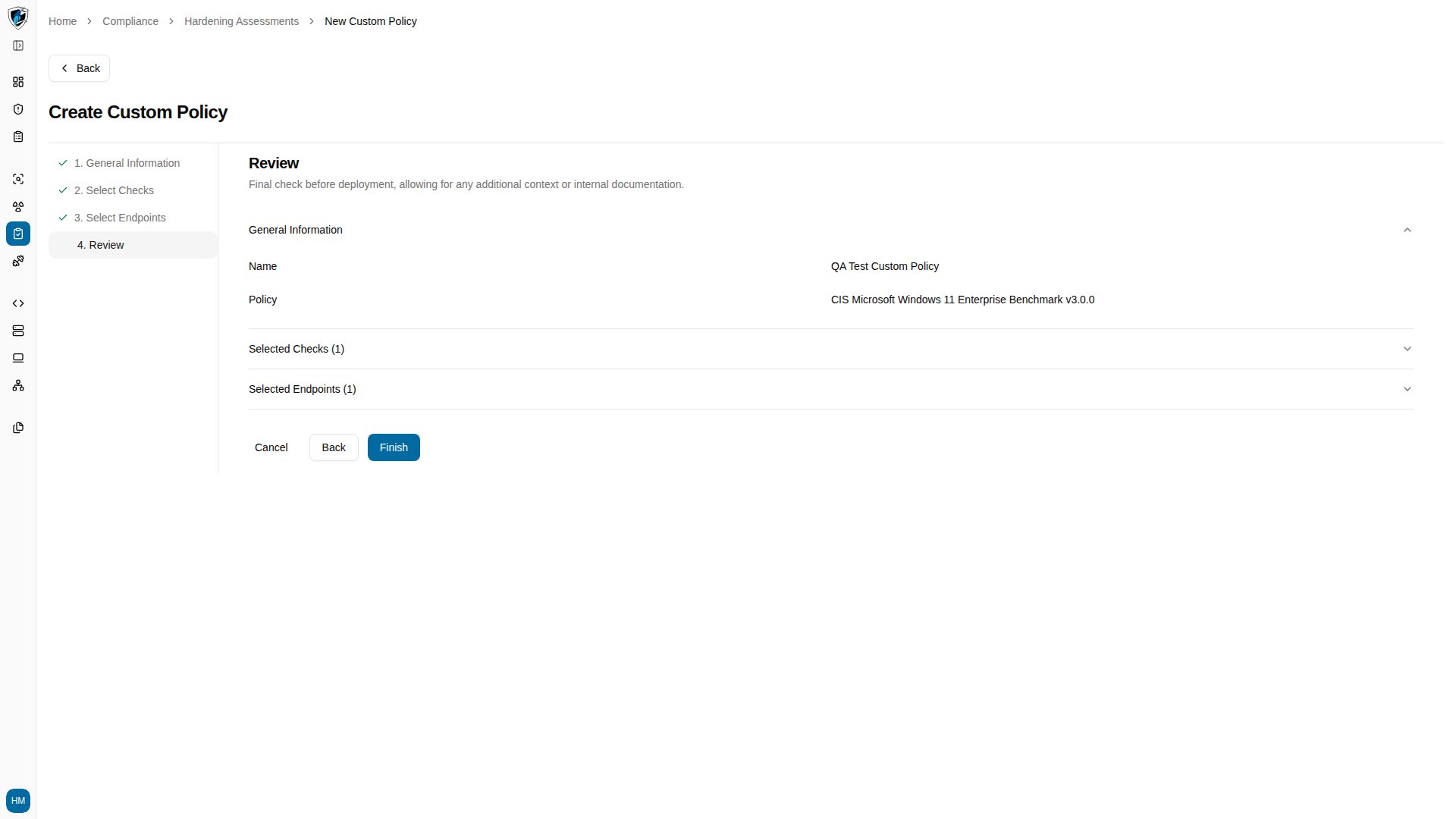
4. **Review** — confirm your selections and save.
## Create a policy
1. On **Hardening Assessments** (`/compliance/hardening`), click **Create Custom Policy**.
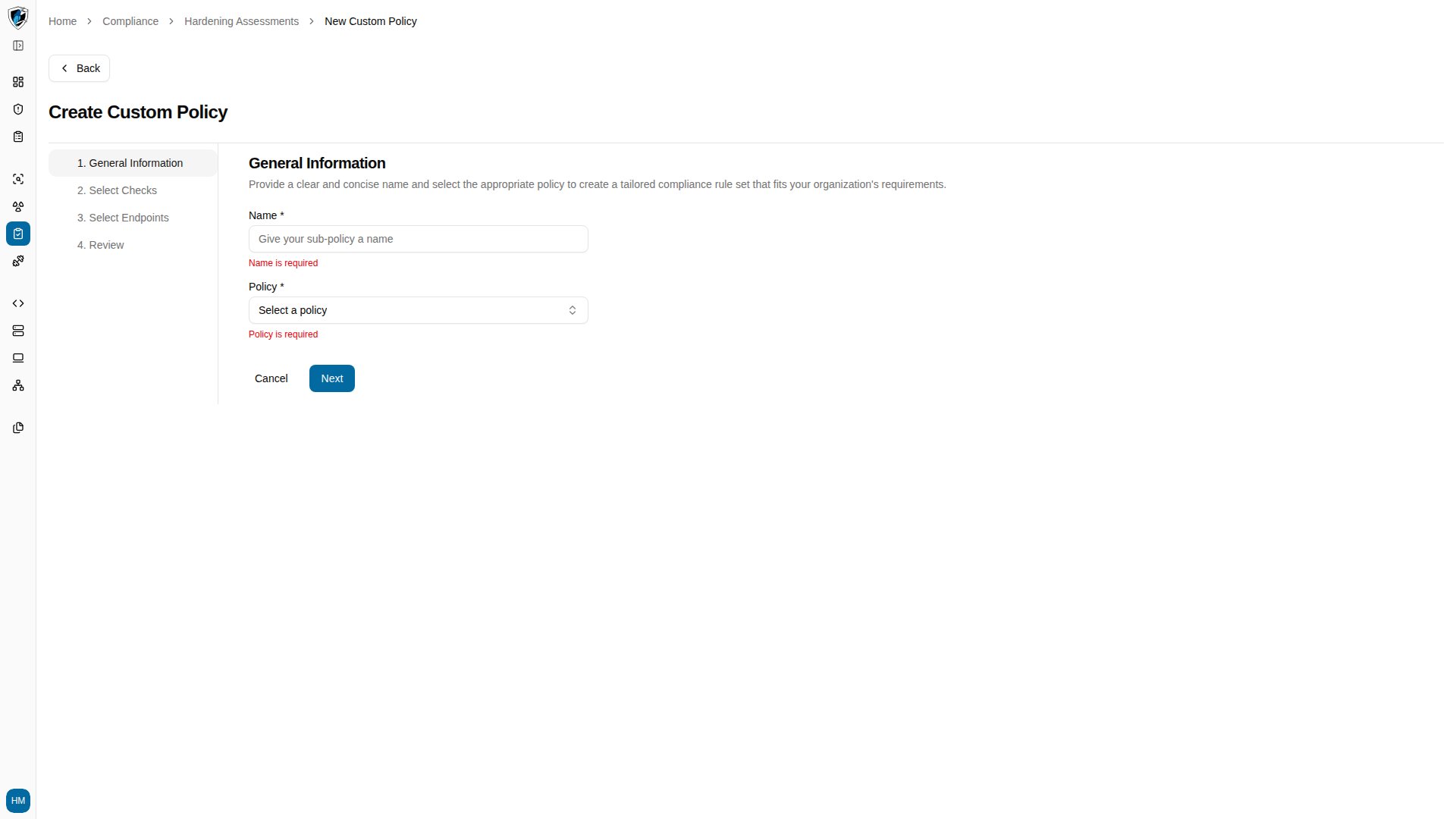
2. On **Step 1**, enter a policy **Name** and select a base benchmark from the **Policy** combobox, then click **Next**.
 3. On **Step 2**, select the compliance checks to include. Click any check title to preview its full detail before deciding.
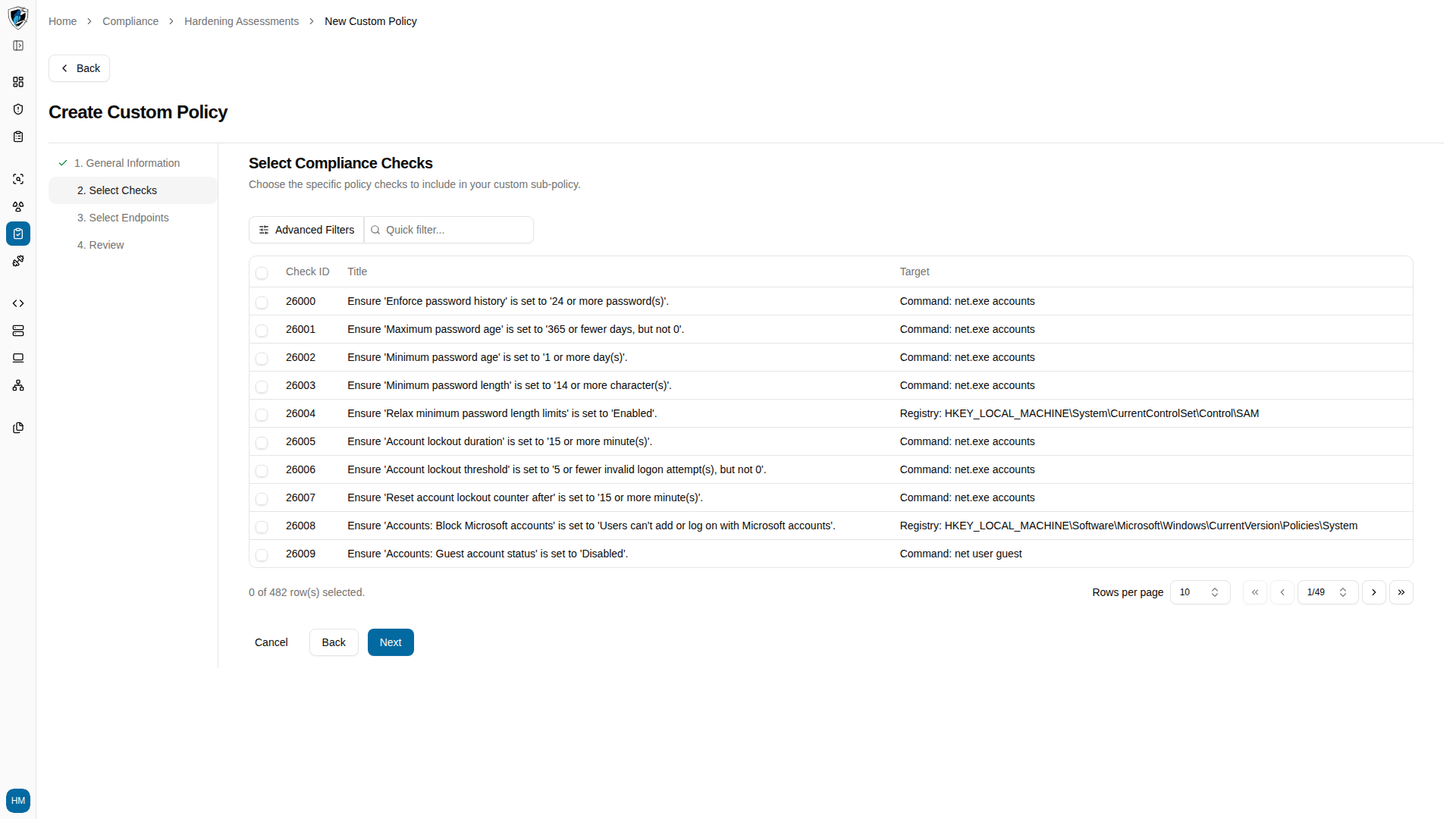
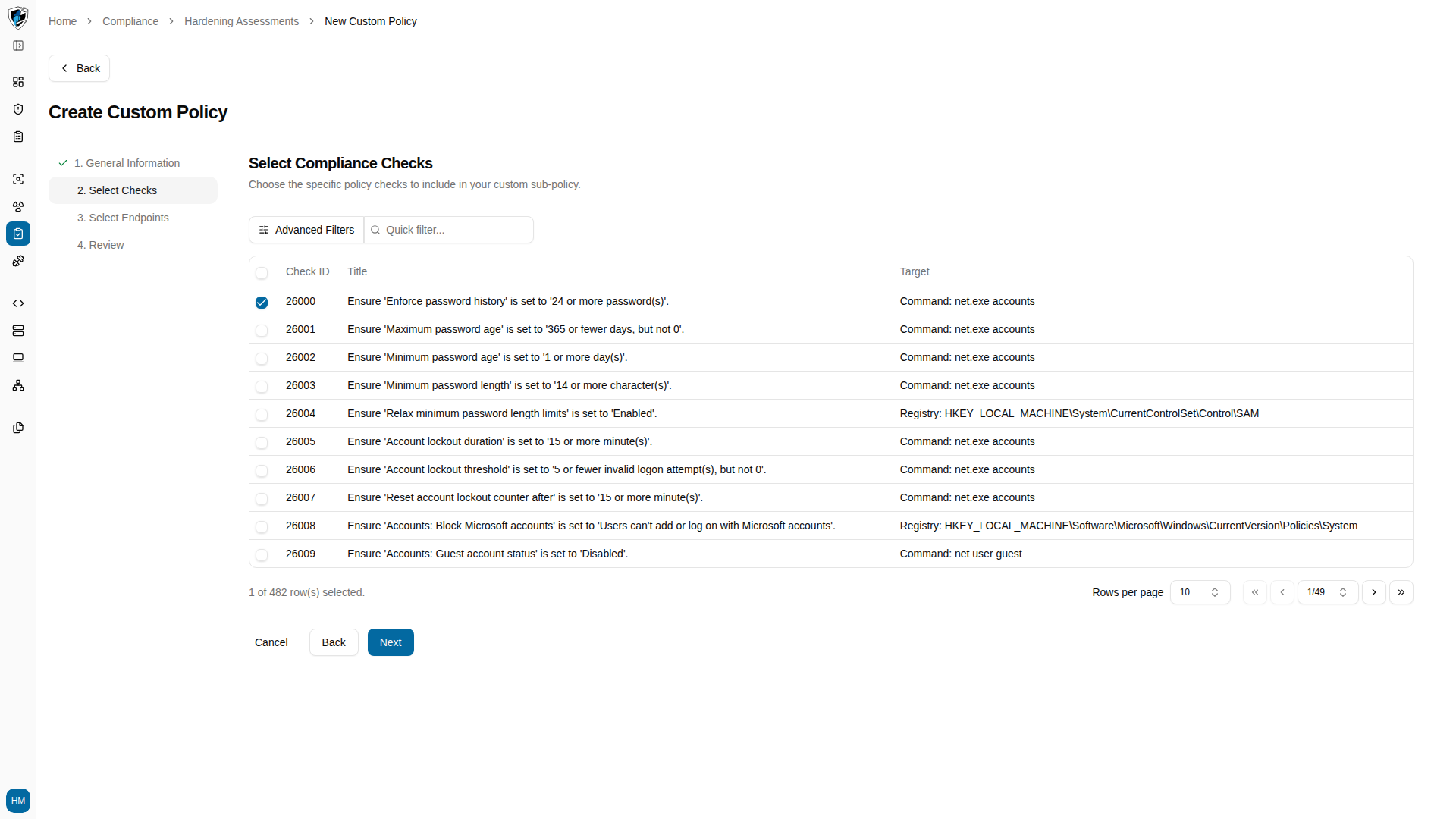 4. Click **Next**. If nothing is selected, a toast blocks you.
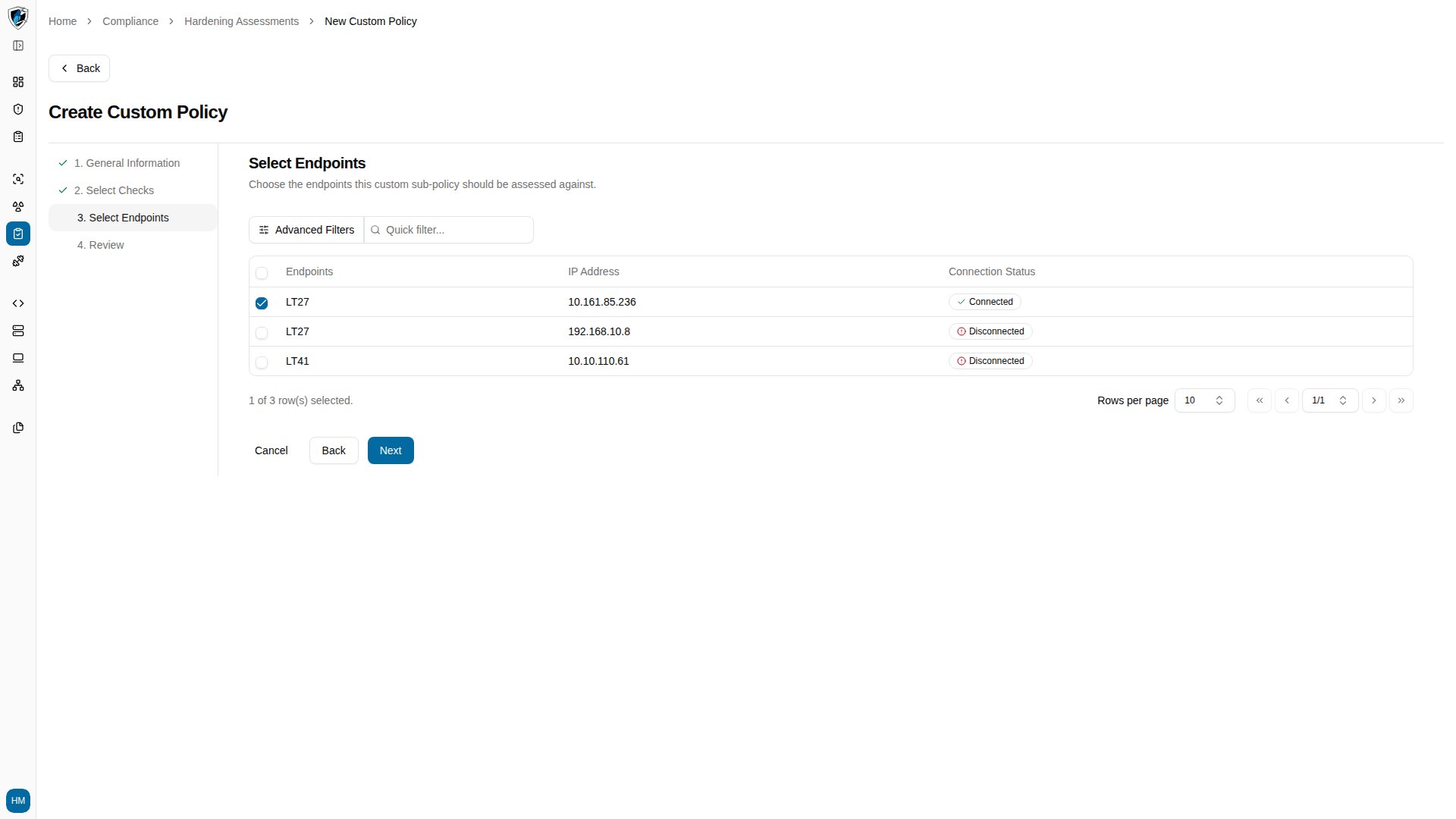
 5. On **Step 3**, select the target endpoints. The table shows Name, IP, and a connection status badge for each.
 6. On **Step 4**, expand the **Selected Checks (N)** and **Selected Endpoints (N)** accordions to confirm everything, then click **Finish**.
 ## Validation and behavior
| Step | Condition | Message |
| :--- | :----------------------- | :-------------------------------------- |
| 1 | Name left blank | `Name is required` |
| 1 | Base policy not selected | `Policy is required` |
| 2 | No checks selected | `Select at least one compliance check.` |
| 3 | No endpoints selected | `Select at least one endpoint.` |
Two behaviors are worth knowing before you start:
**Changing the base policy resets your work.** Selecting a different base policy on step 1 clears every check and endpoint selection you made in later steps. Settle on the base benchmark first.
**Endpoints must have been scanned.** If no base policies exist, or no endpoint has completed an SCA scan, the dropdown reads `No policies found. Endpoints must complete a scan first.`
## Validation and behavior
| Step | Condition | Message |
| :--- | :----------------------- | :-------------------------------------- |
| 1 | Name left blank | `Name is required` |
| 1 | Base policy not selected | `Policy is required` |
| 2 | No checks selected | `Select at least one compliance check.` |
| 3 | No endpoints selected | `Select at least one endpoint.` |
Two behaviors are worth knowing before you start:
**Changing the base policy resets your work.** Selecting a different base policy on step 1 clears every check and endpoint selection you made in later steps. Settle on the base benchmark first.
**Endpoints must have been scanned.** If no base policies exist, or no endpoint has completed an SCA scan, the dropdown reads `No policies found. Endpoints must complete a scan first.`