> ## Documentation Index
> Fetch the complete documentation index at: https://docs.kikimora.io/llms.txt
> Use this file to discover all available pages before exploring further.

# Creating an auth record

> Create an authentication record inline from the web application wizard, with every field, constraint, and validation message.

You create authentication records from the **Scan Configuration** step (step 3) of the web application creation or edit wizard.

## Dialog fields

The **Add New Authentication Record** dialog contains:

| Field           | Type                            | Purpose                                             | Required                   | Validation message when empty |
| --------------- | ------------------------------- | --------------------------------------------------- | -------------------------- | ----------------------------- |
| **Type**        | Dropdown (`Standard`, `Custom`) | The authentication method. Defaults to `Standard`.  | Yes                        | N/A                           |
| **Name**        | Text                            | Unique label for the record.                        | Yes                        | `Name is required`            |
| **Username**    | Text                            | Account username or email the scanner logs in with. | Yes                        | `Username is required`        |
| **Password**    | Password                        | Password for that account.                          | Yes                        | `Password is required`        |
| **Comments**    | Textarea                        | Optional notes describing the credentials.          | No                         | N/A                           |
| **Field Name**  | Text                            | Parameter name for custom authentication forms.     | Only when Type is `Custom` | `Field name is required`      |
| **Field Value** | Text                            | Value for that custom form field.                   | Only when Type is `Custom` | `Field value is required`     |

## Create a record

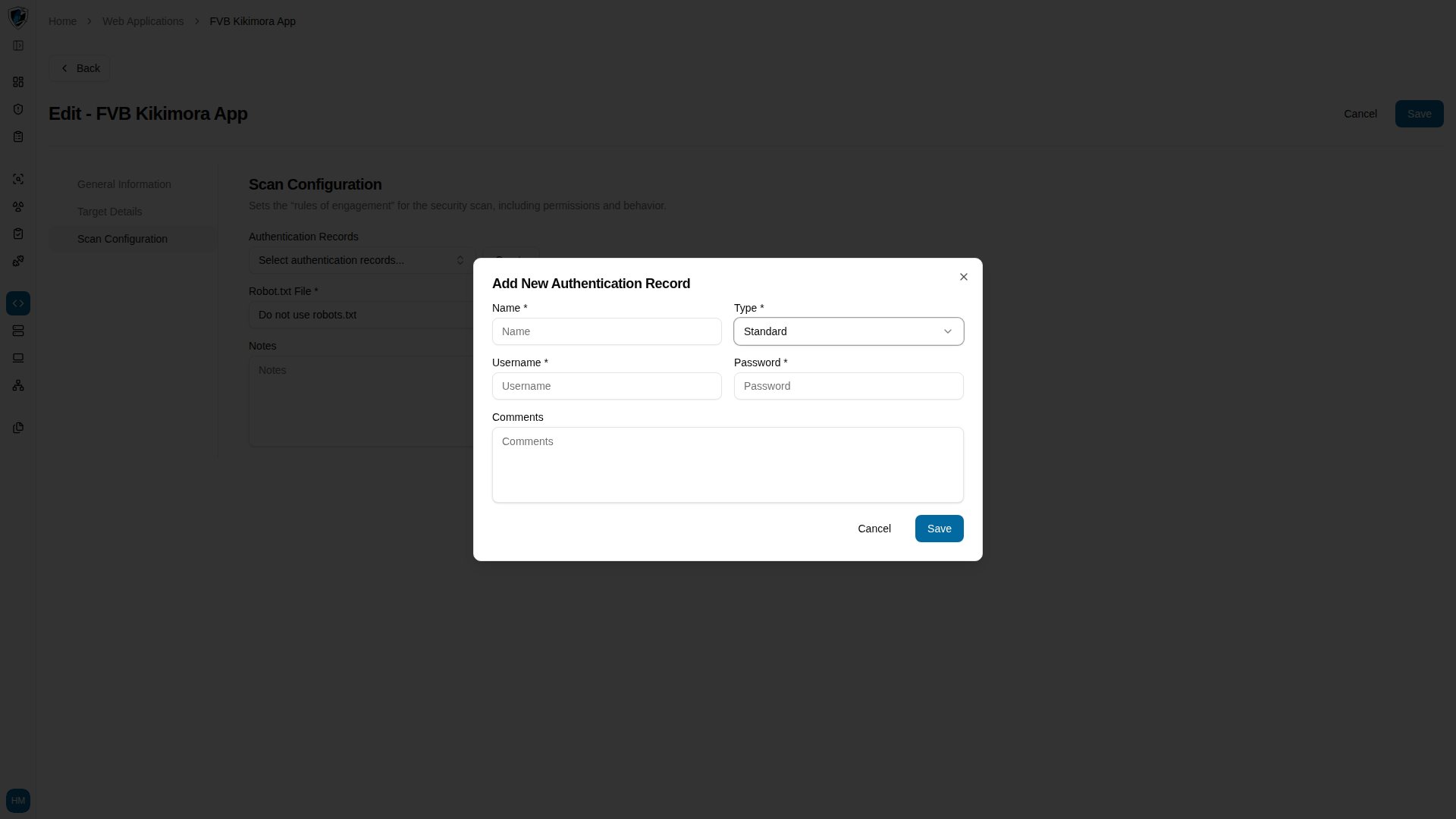
1. On step 3 (**Scan Configuration**) of the web application wizard, find the **Authentication Records** section and click **Create**.
   <img src="https://mintcdn.com/kikimora/_61TKijx1WdBSLGY/images/auth-records/create-auth-record--01--open-create-dialog.png?fit=max&auto=format&n=_61TKijx1WdBSLGY&q=85&s=90e122283c72029ab6ba7dfc91ccd3a3" alt="Scan Configuration step with the Authentication Records section and its Create button" width="1920" height="1080" data-path="images/auth-records/create-auth-record--01--open-create-dialog.png" />

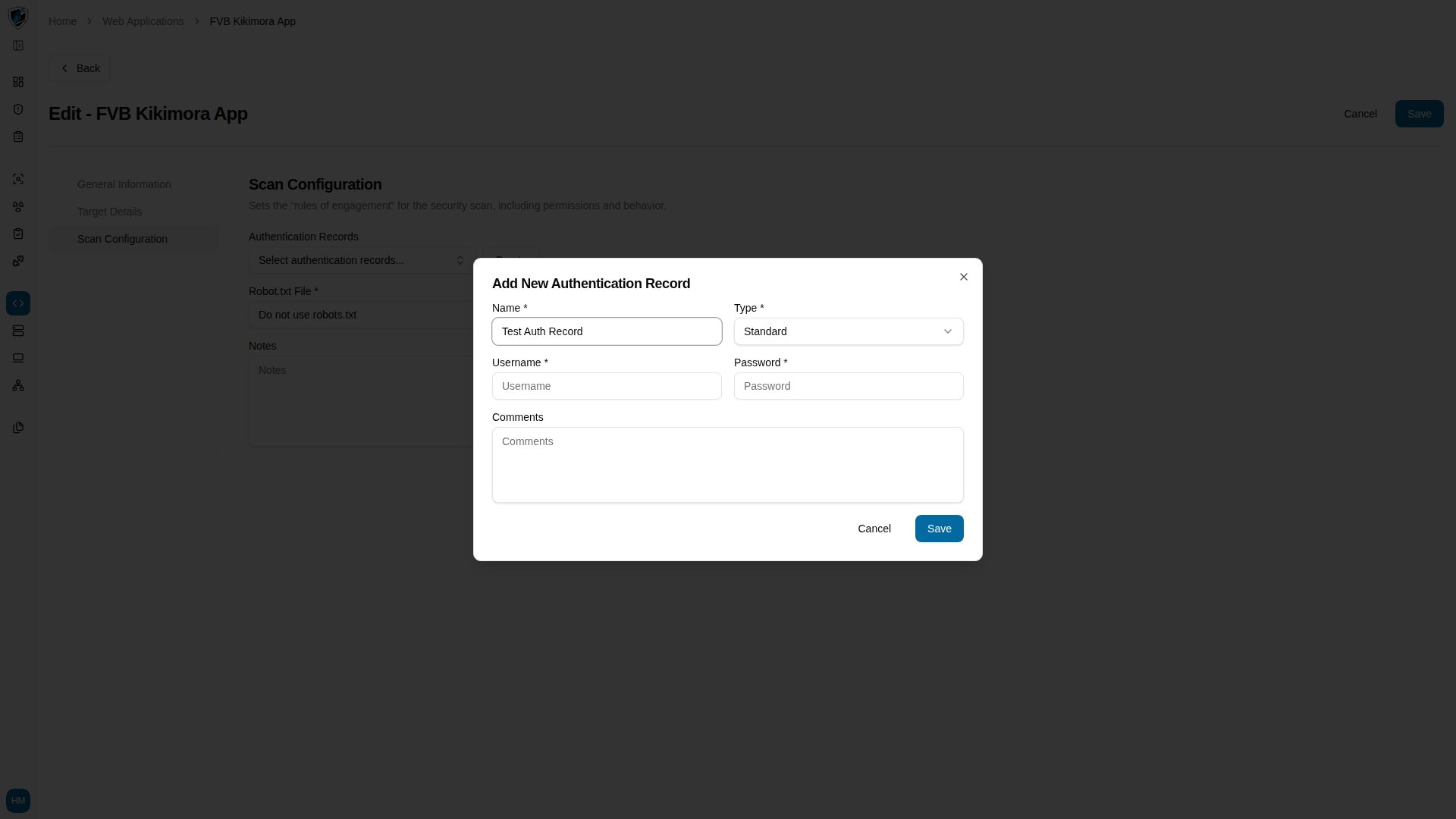
2. Choose a **Type**, such as `Standard`, and enter a descriptive **Name**.
   <img src="https://mintcdn.com/kikimora/_61TKijx1WdBSLGY/images/auth-records/create-auth-record--02--enter-name.png?fit=max&auto=format&n=_61TKijx1WdBSLGY&q=85&s=5ffb0c7e0680e35d1d593cf843246ed3" alt="Add New Authentication Record dialog with the type set to Standard and a name entered" width="1920" height="1080" data-path="images/auth-records/create-auth-record--02--enter-name.png" />

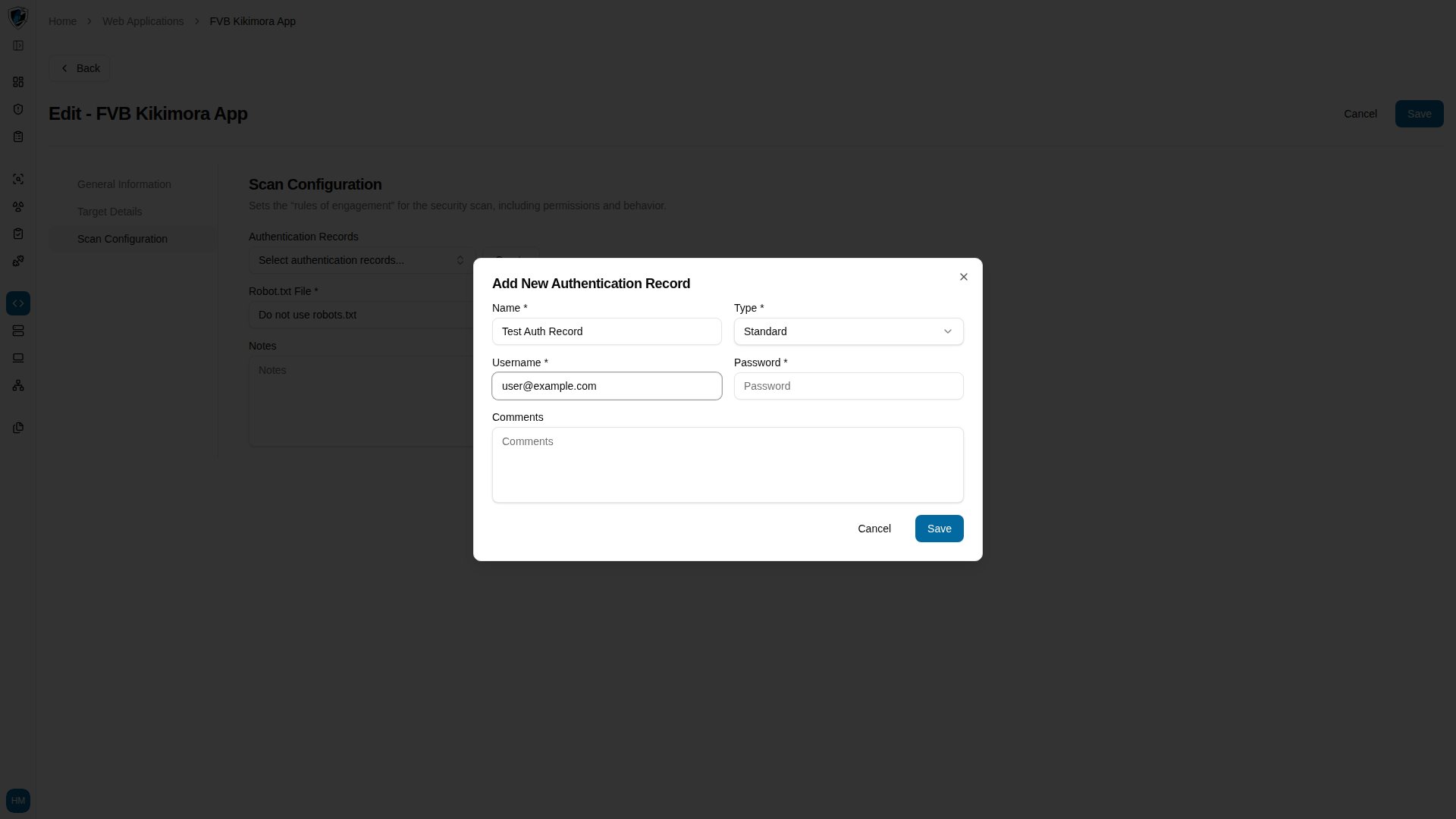
3. Enter the **Username** for the target application account.
   <img src="https://mintcdn.com/kikimora/_61TKijx1WdBSLGY/images/auth-records/create-auth-record--03--enter-username.png?fit=max&auto=format&n=_61TKijx1WdBSLGY&q=85&s=d5d599da22277a0a70db78de32434385" alt="The dialog's username field filled with a placeholder account address" width="1920" height="1080" data-path="images/auth-records/create-auth-record--03--enter-username.png" />

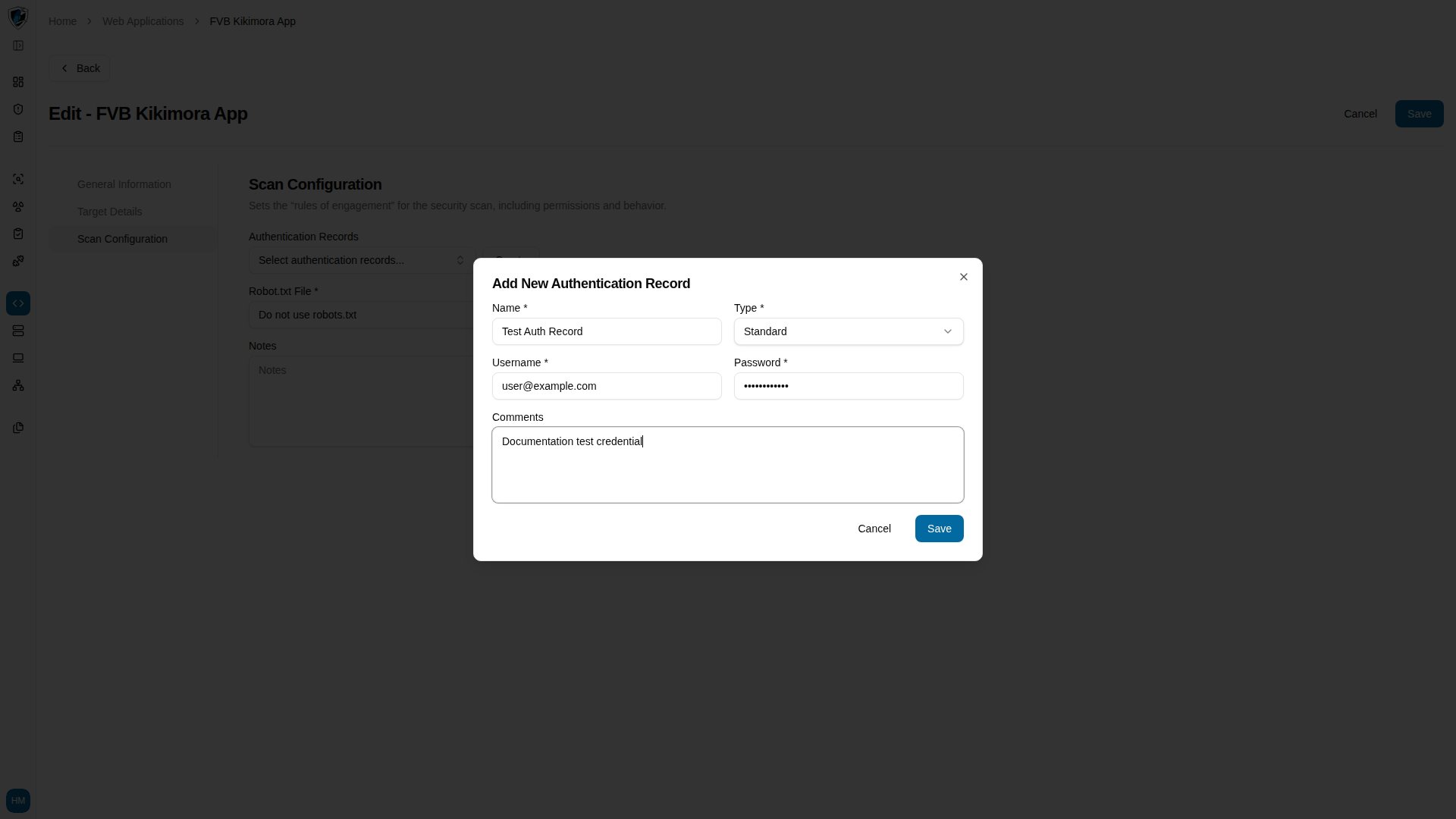
4. Enter the **Password**, add any **Comments**, and click **Save**.
   <img src="https://mintcdn.com/kikimora/_61TKijx1WdBSLGY/images/auth-records/create-auth-record--04--enter-password-and-comments.png?fit=max&auto=format&n=_61TKijx1WdBSLGY&q=85&s=073c3d9052bcdce11571a74ca8d7f0eb" alt="The dialog with a masked password and a comment describing the credential set" width="1920" height="1080" data-path="images/auth-records/create-auth-record--04--enter-password-and-comments.png" />

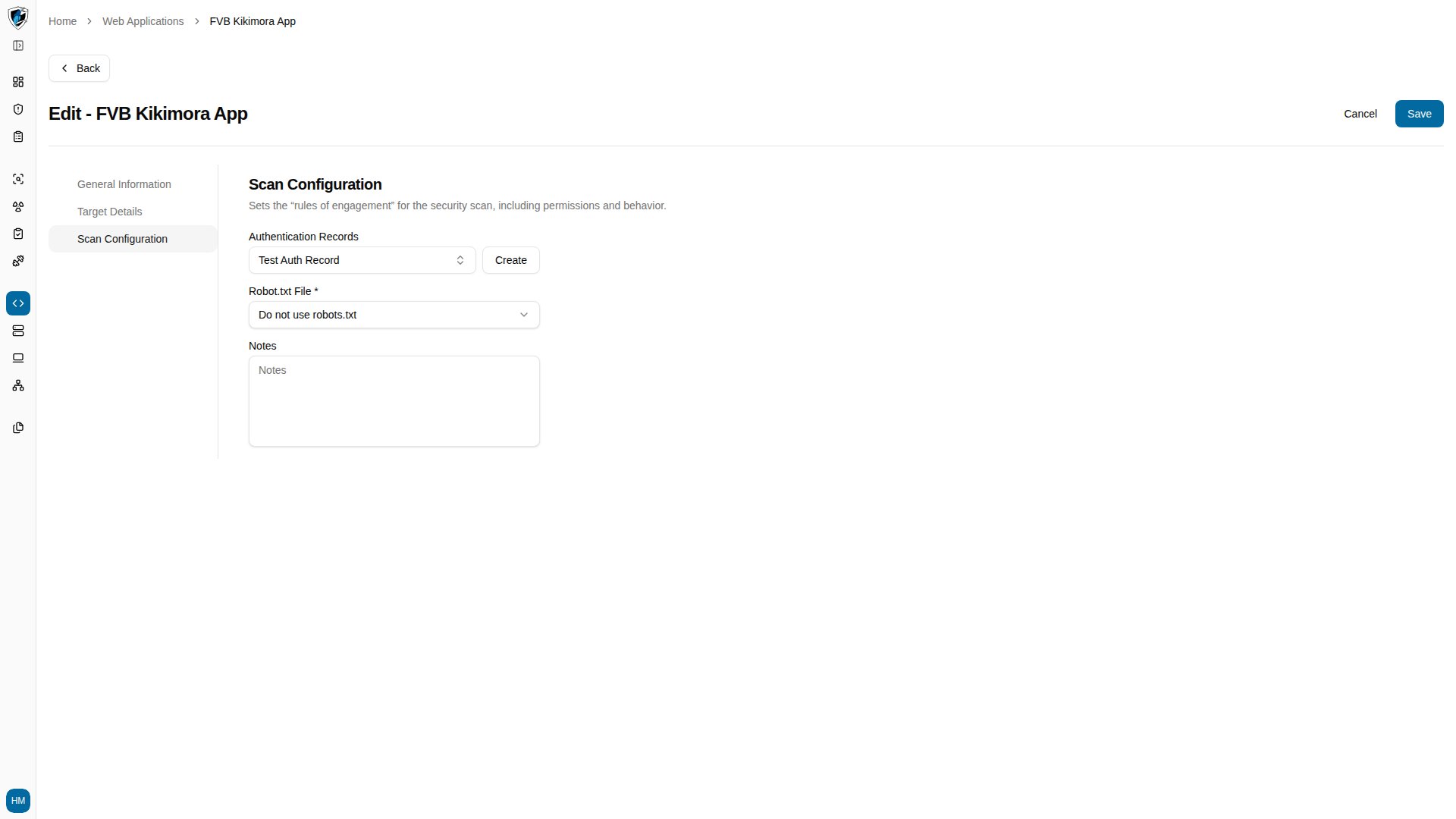
5. Confirm the new record now appears selected in the **Authentication Records** dropdown.
   <img src="https://mintcdn.com/kikimora/_61TKijx1WdBSLGY/images/auth-records/create-auth-record--05--record-selected-in-wizard.png?fit=max&auto=format&n=_61TKijx1WdBSLGY&q=85&s=e2a4cb778dac3efbe864271688a7736b" alt="Authentication Records dropdown in the wizard showing the newly created record selected" width="1920" height="1080" data-path="images/auth-records/create-auth-record--05--record-selected-in-wizard.png" />
